Web overlays
A web overlay is a web page (a chat box, an alert box, a goal bar, any URL)
rendered off-screen and placed on a scene as a layer. It needs a build with the
web engine (the Chromium Embedded Framework, built with --features cef);
macOS only for now. In a build without it, Add browser overlay explains
what is missing.
This page covers what the app does to keep overlays cheap and alive: the background rate, reloading, the memory ceiling, and what happens when a page crashes or loses its connection.
macOS
Windows
Linux
Where an overlay runs at full rate
An overlay renders at its Max fps (1–60, default 30) only while someone can see it. Otherwise the app slows it down or suspends it, and brings it back the moment it is needed:
| The overlay’s layer is… | The page |
|---|---|
| in the live (Program) scene, and the window is visible or an output (recording, stream, extra output, Syphon/NDI sender) is running | runs at Max fps |
| in Studio mode’s Preview scene, with the window visible | runs at Max fps |
| in the live scene but switched off (the eye icon) | runs at its Hidden-layer fps (default 2) so it stays current |
| in no live scene, or the window is minimised/covered and nothing is recording or streaming | is suspended: no painting, page timers slowed down |
| open in its Interact window | runs at Max fps wherever its layer is |
Switching to a scene, showing a layer or restoring the window resumes the page at once: the next frame is painted immediately rather than on a timer. A suspended page keeps its network connections (a chat keeps receiving messages), so it is up to date when it comes back; its video and audio may keep playing, which is the page’s choice, not the app’s.
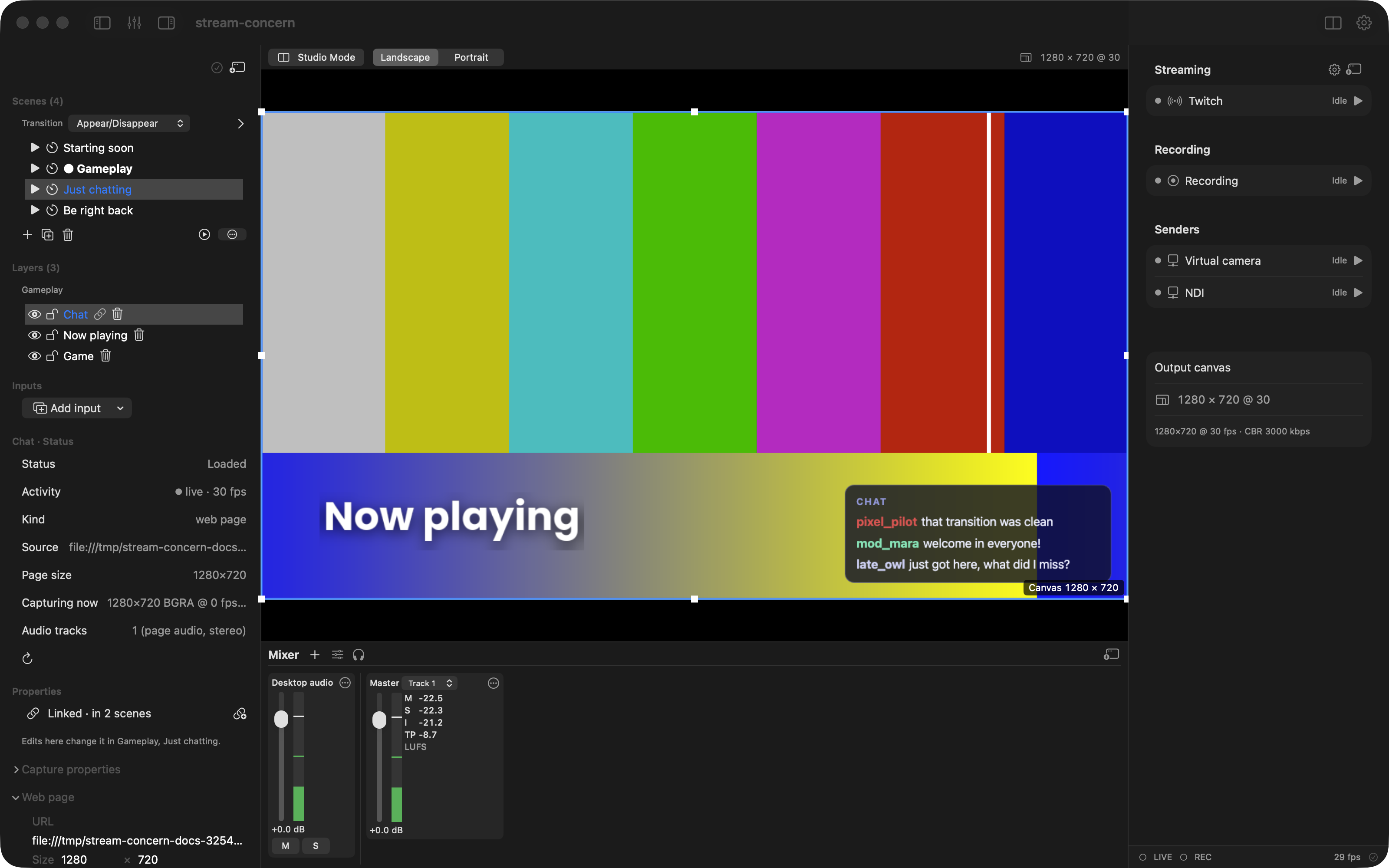
The web layer’s inspector shows the current state next to Loaded:
● live · 30 fps, ◐ background · 2 fps or ○ suspended. Hidden-layer
fps sits next to Max fps in the inspector.
Page audio
Each overlay has a Page audio switch in its inspector (on by default). On,
the page’s sound is a strip in the mixer named Web: <host>, at 0 dB and muted
when Mute page audio is ticked. Off, the overlay has no mixer strip at all
and the page’s sound is discarded (the web engine mutes the page too); turn it
on again and a fresh strip comes back at 0 dB. Most overlays (a chat, a goal
bar, a page on localhost) make no sound, so their switch can stay off.
Remove input on a web page’s mixer strip is the same thing: it turns that overlay’s Page audio off. The switch is saved with the layer in the scene file, so the strip stays gone after a restart. In Studio mode, like the strip’s Mute, it acts on the live layer at once (no Preview edit, nothing to Take); a Preview copy of the page being edited gets the same setting.
Scrollbars
Overlays show no scrollbars: most are a widget sized to its layer, where a bar
along the edge is only in the way. A page taller or wider than its layer still
scrolls (with the mouse wheel in Interact, or by the page itself) and keeps
its layout; only the bars are hidden. To see them, turn on Scrollbars in
the overlay’s inspector, next to Page audio. The switch is per overlay and
saved with the layer in the scene file; overlays saved before it existed load
with it off. It applies to the page at once, without a reload. In Studio mode
it acts on the live layer, like Page audio. A frame inside the page (an
<iframe>) that is already up when you switch picks the change up the next
time it loads.
Size
A new overlay takes its page’s own size, and its layer’s box hugs the page instead of covering the canvas. When the page has loaded it reports its size, and the app resizes the page to that size and fits the box around it. The page reports again when its size changes (a chat growing as messages arrive, a widget changing layout), at most four times a second, and the box follows, keeping its top-left corner and the scale it is drawn at.
The size the page reports is:
- a size it declares, if it has
<meta name="overlay-size" content="400x600">(width × height in pixels), which is the reliable way for a page you write; - otherwise the extent of its content. A page that fills whatever space it is given has no smaller size to report and keeps the size it was added at.
Sizes are kept between 16 and 4096 pixels. Resizing the box on the canvas scales the page; when the box is drawn larger than the page, the page is rendered at a matching higher resolution (up to 3×) so its text stays sharp.
The Fit page size switch in the overlay’s inspector (Web section) turns this on or off. It is on for a new overlay; while it is on, the page sets Width and Height and those fields are disabled. Turn it off to size the page yourself. An overlay saved before the switch existed loads with it off and keeps the size it was saved with until you turn it on. Whether Streamlabs and StreamElements chat pages declare a size is not yet confirmed; when one does not, its content extent is used.
Reload
⟳ Reload on the web layer’s inspector reloads the page. It also restarts automatic recovery after it has given up (below), and when the page had failed to load it reloads the overlay’s configured URL rather than the failed address.
When a page crashes or loses its connection
- The page’s renderer crashes (a bad page, running out of memory): the overlay keeps showing its last frame (a transparent overlay stays transparent) and reloads itself after 1 s. If it crashes again the wait doubles: 1, 2, 4, 8, 16 and then 30 s between tries.
- The page cannot be loaded because of the network (no internet, the connection reset, a timeout): the overlay reloads with the same waits. If the page reconnects by itself in the meantime, the app does not reload it; errors inside a page that is loaded and running (a chat’s websocket dropping) are left to the page, which handles its own reconnects.
- The address cannot be reached at all (the connection is refused, or the
name does not resolve: the server is off, or the address is mistyped): the
overlay waits longer between tries, 2, 5, 10 and 30 s and then once a
minute, and keeps trying for as long as it exists. The layer’s status says
why, for example
Cannot reach 192.168.1.29: connection refused; retrying in 60 s. Reload tries at once and starts the waits again from 2 s. - After 8 reloads in a row without the page staying up for 10 seconds (a crash or a network error, not an unreachable address), the overlay gives up and waits: the inspector says so in red. Press Reload to try again. A page that stays up for 10 seconds counts as healthy and the waits start again from the first step next time.
While an overlay is recovering, its inspector shows the reason, the attempt
number and the wait (Recovering: ERR_NAME_NOT_RESOLVED (-105); reload 2 of 8 after 2 s), and the status bar shows each failure. Other load errors (a 404
page, a certificate error) are shown as the layer’s last error and are not
retried.
Memory ceiling
Web pages run in the web engine’s helper processes, outside the app’s own memory. The app measures the helpers every 5 seconds (on macOS the figure Activity Monitor shows as Memory, on Linux their resident memory) and watches their total for a leak, not for a size:
- The ceiling grows with the overlays: 384 MiB per overlay plus 256 MiB, and never less than Settings ▸ Web ▸ Memory ceiling (default 1024 MiB). Four overlays get 1792 MiB.
- After the overlays load (or change, or one is reloaded) the app lets them settle for a minute and notes the total then. Only a total that is over the ceiling and has grown by more than a quarter since that note is a leak: the app then reloads the overlay that has been running longest. A total that is high but steady (several heavy pages) is left alone.
- If three reloads in a row do not bring the total down, the app stops reloading, logs it once and marks the overlay memory high in its status. The overlay keeps running; the app watches again once the total is back under the ceiling or you add or remove an overlay.
Reloads are logged, shown in the status bar and noted on the overlay’s inspector. Set Memory ceiling to 0 to turn all of this off.
The engine cannot tell which page uses how much memory, so the ceiling is on the total and the longest-running overlay (long-running pages are the ones that grow) is the one reloaded. If one overlay is the problem, consider a lighter URL for it (for Twitch, the pop-out chat rather than the full channel page, which plays the stream).
When an overlay keeps reloading
The status bar or the log says why; there are two reasons the app reloads an overlay by itself.
-
Cannot reach <host>: connection refused(orname not resolved): the overlay’s address is not answering. Check that the server or the other computer it points at is running and that the address is right, then press Reload. Until then the app tries once a minute, which costs next to nothing; remove or hide the layer if the server will stay off. -
… reloaded: web helper processes used … MiB, over the … MiB ceiling and grown from … MiB: a page is growing in memory. If it happens often with pages you trust, give each overlay more room. The allowance per overlay ishelper_memory_per_overlay_mibin the[web]section of the profile (profile.tomlin the app’s settings folder; default 384); it has no Settings row yet, so edit the file while the app is closed:[web] memory_ceiling_mb = 1024 helper_memory_per_overlay_mib = 512Memory ceiling in Settings stays the floor. An overlay marked memory high has had three reloads that did not help: the app leaves it alone, and a lighter URL for that overlay (or a higher allowance) is the fix.