Outputs: streaming and recording
An output is one destination: a live stream to a service, a recording on disk, or a sender to other apps. Each output has its own canvas geometry, encoder settings and target, and any number can run at once. Outputs are listed in the Outputs section of the Controls panel, and created in Settings ▸ Output.
The Controls panel holds the Record/Stream buttons, the outputs list and the Video summary. The default audio input lives in Settings ▸ Audio and on the mixer.
Start and stop
At the top of the Controls panel:
- Start streaming / Stop streaming — the big button. You can also start and stop from File ▸ Start Streaming or the shortcut ⌘⇧S.
- Start recording / Stop recording. Pause and Resume are on the recording’s own row (see below).
Hover either button while its output runs for its live figures (see Health). Starting and stopping never block the UI; sessions connect, reconnect and adapt on worker threads.
The outputs list
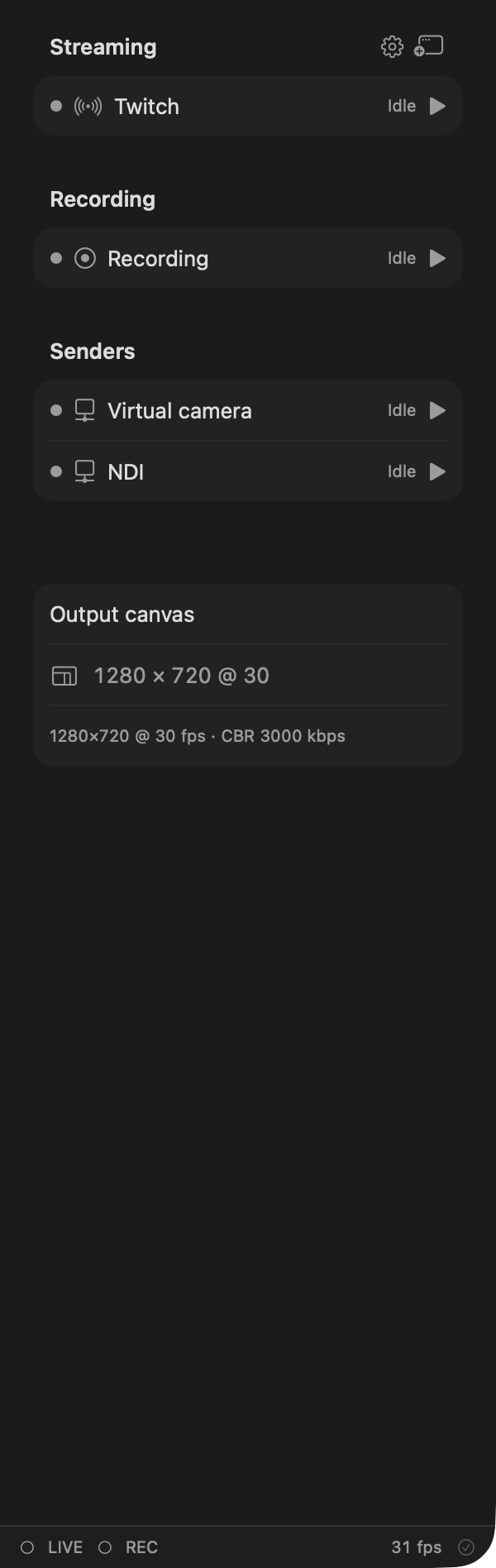
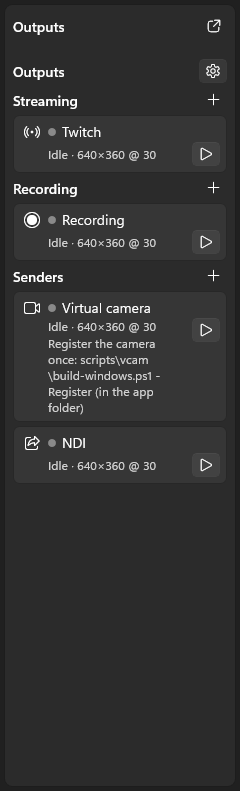
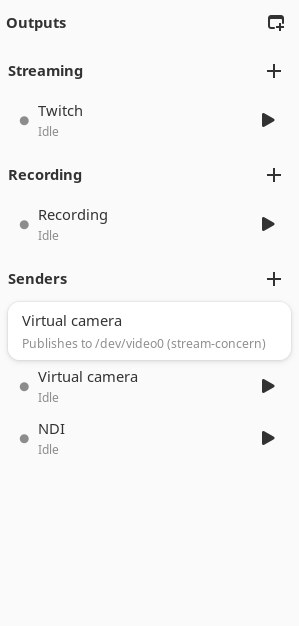
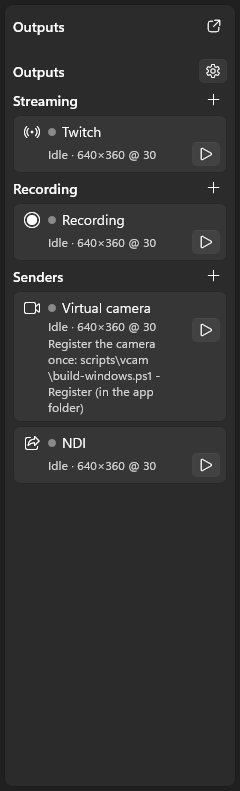
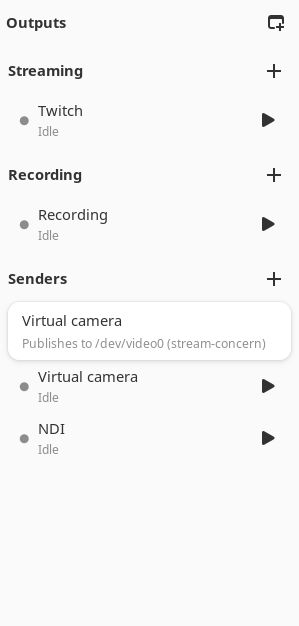
The list is grouped Streaming, Recording and Senders, each under its own header. Every header has a + that opens Settings ▸ Output with that group’s add choices shown as buttons; a group with no outputs keeps its header and its +. Settings ▸ Output lists the outputs in the same groups, each with its own Add… menu:
- Streaming — Twitch, YouTube, Custom RTMP/RTMPS. Any other service (Kick, Facebook Live, Restream, …) is chosen in the new output’s Service list (see Services).
- Recording — MP4 H.264, MOV ProRes, MKV.
- Senders — Syphon output (macOS only), Spout output (Windows only), PipeWire output (Linux only), Virtual camera (all platforms), and NDI output (see Senders below).
Above the groups are Start all, Stop all and Detach: Detach moves the whole Outputs area into its own window (like the mixer), and Attach in that window, or closing it, puts it back (non-macOS: also View ▸ Detach outputs). The choice is remembered across restarts.
Each output is one compact row: a state dot, the kind tag (STREAM,
REC, or a sender’s protocol), the name, a TEST badge for a Twitch
bandwidth test, and Start or Stop at the right; under it one status
line: Idle, Live · 5800 kbps · 2:05, Recording · 1:02:05, a sender’s
Live · 1 client · 3000 frames. A stream that is reconnecting or failed shows
why on a line of its own. When two outputs share one encoder the second shows
“· sharing encoder with <name>”.
The primary recording (the first recording output, the one Start recording
drives) carries Pause beside its Stop while it records; paused, its
line reads Paused · 0:10 in amber and the button reads Resume.
macOS
Windows
Linux
The output popover
Click an output’s name or status line (not its Start/Stop) to open its popover, a small window beside the list:
- the name and the enabled toggle;
- its status and live figures (as in its hover card), its canvas, and the failure reason when it failed;
- its key settings: Canvas; for a stream the Codec, the bitrate box and the Audio bitrate; for a recording the Container, Codec, the bitrate (for a Custom quality with a bitrate rate control; otherwise its Quality) and the Audio tracks 1–6. A sender shows its own settings (publish name, NDI groups);
- Recent (recordings): the newest file this output finished, with its length, size and codec, Open (your default video player) and Show in Finder (Explorer on Windows; Open folder on Linux). A split recording reads “3 files, last: …”. Both buttons are disabled once the file has been moved or deleted. The list is for this session only;
- All settings… opens Settings ▸ Output at this output, More options shows the full editor (below) inside the popover, then Duplicate and Remove (disabled while the output runs).
The stream key appears only in the full editor (More options, or Settings ▸ Output), as a masked field. Editing a running output applies on its next start (“Editing applies on this output’s next start.”). Close the popover with its ×, Escape, or a second click on the row.
Health: hover cards and the summary
Hover a running output’s name or status line (or the Start/Stop streaming and recording buttons) for its live figures, each green when good and red when not, with the rule it broke:
- Bitrate (streams) below 80 % of the target. The rule and the row’s “Live · N kbps” figure use the rate sent over the last 10 seconds (over the seconds so far once a stream has run 4 seconds; the last second’s before that), because the second that carries a keyframe sends more than the next and a one-second figure swings above and below the target. The card shows both: “Bitrate 4700 kbps now, 6100 kbps over 10 s (target 6000 kbps)”;
- Dropped frames above 1 % of the frames the output should have had (its running time × its frame rate);
- a reconnect in the last minute (streams);
- the composed canvas rate below 95 % of the canvas frame rate.
The bitrate and frame-rate rules start 5 seconds after an output starts. The plain facts follow: elapsed time, encoder, bytes written, a sender’s clients and frames, and for the primary stream its “LIVE on … via …” line. While any figure is bad the row’s status line and its Stop turn red, and a failing output (failed, or retrying with a reason) gets a red outline.
Collapsing the outputs list
The Outputs (N) header collapses the whole list (click it or its arrow).
Collapsed, the header still shows the count and what is running, e.g.
Outputs (3) · 1 running: Twitch or Outputs (3) · none running; the
Record/Stream buttons above it keep working. Whether the list is open is
remembered across restarts; it starts open.
The stream editor
The full stream editor is on Settings ▸ Output (and behind More options in the output’s popover):
- Account — shown once you have an account in Settings › Streaming Services: the account this output streams with, or Inline settings (the output’s own service, server and key). With an account chosen, the service is shown read-only and the server and key fields are hidden: they come from the account (see Streaming Services accounts).
- Service — every service in the catalogue (see Services). Choosing one points the output at its default server and, unless Apply service limits is off, clamps the bitrate, audio bitrate, keyframe interval and profile to what the service accepts, with a note saying what changed (“Clamped to Kick’s limits: video 20000 ➡ 8000 kbps, profile high ➡ main.”).
- Server — the service’s ingest servers. For Twitch, Auto
(recommended) picks the best ingest from Twitch’s live list when the stream
starts, the regional ingests are listed by name, and opening the dropdown
also fetches Twitch’s current list once, off the UI thread. For YouTube,
choose Primary or Backup (RTMPS, or plain RTMP under YouTube -
RTMP). Services that issue the URL per account or per event (Amazon IVS,
Vimeo, LinkedIn Live, TikTok, …) show a URL field for the value from their
dashboard; Custom RTMP(S) / self-hosted takes any
rtmp://orrtmps://URL. - Limits line and docs — under the server: the service’s documented maximum bitrate, audio bitrate, keyframe interval, profile, resolution and codecs, with a docs link to the service’s own encoder guide. A canvas larger or faster than the service accepts is flagged.
- Apply recommended settings — sets the service’s recommended bitrate for this output’s canvas (YouTube’s per-resolution ladder, for example 12000 kbps at 1080p60 and 4000 kbps at 720p30), its keyframe interval, profile and audio bitrate. Where the service documents none, standard defaults apply: 6000 kbps, 2 s keyframes, High profile and 160 kbps AAC. A note lists what changed.
- stream key — a password field. Keys are redacted in logs and in the
profile’s debug output, and are stored only in
profile.toml. A stream will not start with an empty key. - Test mode (bandwidth test: nothing goes live) — Twitch only. It appends
?bandwidthtest=trueto the key so Twitch measures your connection without the channel going live. A test stream shows a TEST badge in its row and the stream’s status reads TEST MODE rather than LIVE. - Codec — H.264 (classic) (the always-supported baseline over classic RTMP) or HEVC (Enhanced RTMP). HEVC requires a service that permits it and is backed by a hardware HEVC encoder. AV1 (Enhanced RTMP) is listed but is not selectable in this build: no AV1 encoder is present, so the entry stays greyed with the hover reason “no encoder for this codec in this build”.
- Encoder preset — the effective encoder’s preset list with the encoder’s default preselected (see Encoder presets).
- Rate control — CBR (constant, for streaming), ABR (average) or VBR. The default for a stream is CBR.
- Bitrate — stored in kbps; the box holds a plain integer with the unit beside it: whole Mbps for a whole number of Mbps, kbps otherwise (a bare typed number is read in the unit shown; “6.5 Mbps” or “6500k” also work, and the audio bitrate box is kbps). It ranges up to the codec’s maximum (H.264 960 Mbps, HEVC 800 Mbps, AV1 800 Mbps) and, unless service limits are ignored, the service’s maximum; the tighter cap is shown under the field (“max 6 Mbps for Twitch”). Switching codec or service lowers a larger bitrate to the new cap with a note. See Recording › Video bitrate.
- Keyframe — keyframe interval in seconds.
- Profile — Baseline, Main or High.
- B-frames, and the audio bitrate.
- Enhanced Broadcasting (multitrack) — Twitch only; opts the channel into Twitch’s multitrack ladder.
- Canvas — the canvas preset this output encodes at (see below).
Streaming Services accounts
Settings › Streaming Services holds your service accounts: a service, a display name, a server and a stream key each (see Settings). Add to Outputs on an account creates a stream output bound to it, named after the account, at the canvas with the service’s recommended settings (its bitrate ladder, keyframe interval, profile and audio bitrate, at CBR).
A bound output reads the account’s service, server and key each time it starts, so rotating a key on the account needs no edit here; a running output keeps the key it started with until its next start. Pasting a key into a bound output’s key setter (remote control, native apps) writes the account. Choosing Inline settings keeps the account’s values as the output’s own, and removing an account in use does the same for every output that used it.
The profile written with accounts still loads in older versions: each bound output also keeps a copy of its account’s service, server and key.
Service limits
Applying a service clamps your settings to the service’s limits when the stream starts, unless you turn Apply service limits off for that destination (it is always off for Custom RTMP(S) / self-hosted): the video and audio bitrates are lowered to the service’s maximum, a keyframe interval that is auto or longer than the service’s is set to it, and a profile above the one the service names is lowered to it (Kick and Amazon IVS ask for Main, LinkedIn Live for Baseline). Twitch caps classic (single-track) video at 6000 kbps, also when Enhanced Broadcasting is on: the multitrack ladder comes from Twitch per channel, and the classic fallback publishes under the 6000 kbps cap.
The Codecs a service accepts are what the Codec list allows; HEVC and AV1 need a service that documents Enhanced RTMP (YouTube, and a custom server). AV1 is service-permitted there but cannot be selected in this build because no AV1 encoder is present (see the Codec field above).
A new Twitch, YouTube or Custom destination starts at the service’s recommended bitrate for the canvas (Twitch 6000 kbps; YouTube from its ladder; Custom 6000 kbps).
Services
The service catalogue (crates/sc-core/src/services.toml, 78 services) covers
the streaming services in common use that still operate. Each entry was
compiled from the service’s own documentation. A value a service does not
document is left out and nothing is clamped for it; “Apply recommended
settings” then uses the standard defaults above.
The Service lists (the stream editor and Settings › Streaming Services) show the dozen services most people use first (in bold below), then a separator and All services: every other service, alphabetically. The list scrolls; on Linux (GTK) it has no separator but can be searched by typing.
Many services give each account or each event its own server URL: for those the Server is “Server URL from the … dashboard” and you paste the URL the service shows you (“dashboard URL” below).
Unverified services could not be checked against the service’s own pages (the pages would not load, or they do not describe streaming from an encoder); their entry was built from third-party copies of the service’s instructions and has no fixed URL or limits beyond what those copies agree on. They work like any other service, but if a stream is refused, check the service’s own help for its current server and settings, and use Custom if they differ.
Services that are not here: Loola.tv, KakaoTV (shut down), YouTube - HLS (HTTPS ingest, not RTMP), ePlay (browser WebRTC only), and Lovecast, CAM4, Eventials, MyLive, Konduit.live, Sympla and sheeta (no ingest server documented anywhere, or the service could not be identified). Any of them that takes RTMP can still be used through Custom.
| Service | Servers | Key | Max video | Keyframe | Profile |
|---|---|---|---|---|---|
| Twitch | Auto + 14 fixed | per user | 6000 kbps | 2 s | High |
| YouTube - RTMPS | 2 fixed | per user | 51000 kbps | 2 s | High |
| YouTube - RTMP | 2 fixed | per user | 51000 kbps | 2 s | High |
| Kick | Default (global) + dashboard URL | per user | 8000 kbps | 2 s | Main |
| Facebook Live | Default (RTMPS) + dashboard URL | per session | — | 2 s | High |
| X (Twitter) | dashboard URL | per session | 12000 kbps | 3 s | High |
| TikTok LIVE (unverified) | dashboard URL | per session | — | — | — |
| Restream | 19 fixed | per user | 15000 kbps | 2 s | — |
| Trovo (unverified) | Default | per user | 10000 kbps | 2 s | — |
| Vimeo | dashboard URL | per session | — | 2 s | — |
| LinkedIn Live | dashboard URL | per session | 6000 kbps | 2 s | Baseline |
| Instagram Live | dashboard URL | per session | 6000 kbps | — | — |
| Custom RTMP(S) / self-hosted | your URL | yours | — | — | — |
| Amazon IVS | dashboard URL | per user | 8500 kbps | 2 s | Main |
| AngelThump | 8 fixed | per user | — | 2 s | High |
| Aparat (unverified) | dashboard URL | per user | — | — | — |
| api.video | 2 fixed | per user | — | — | — |
| Bilibili Live (unverified) | dashboard URL | per session | — | 2 s | — |
| Bitmovin | 2 fixed + dashboard URL | per session | — | — | — |
| Bongacams (unverified) | dashboard URL | per user | — | — | — |
| Boomstream | Default | per session | — | 2 s | Main |
| BoxCast | 2 fixed | per user | — | — | — |
| Breakers.TV | Default | per user | — | — | — |
| CamSoda (unverified) | dashboard URL | per user | — | — | — |
| Castr | dashboard URL | per user | — | 2 s | — |
| Chaturbate (unverified) | dashboard URL | per user | — | — | — |
| CHZZK | dashboard URL | per user | — | 1 s | — |
| Cloudflare Stream | Default (RTMPS) | per user | — | 2 s | — |
| Dacast | dashboard URL | per user | — | 2 s | High |
| DLive (unverified) | Default | per user | — | 2 s | — |
| Dolby OptiView Real-time | 2 fixed | per user | — | 2 s | — |
| Enchant.events | dashboard URL | per session | — | — | — |
| EventLive.pro | dashboard URL | per session | — | 2 s | — |
| GoodGame.ru | Moscow | per user | — | 2 s | Main |
| IRLToolkit | dashboard URL | per user | — | 2 s | — |
| Jio Games (unverified) | dashboard URL | per user | — | — | — |
| Joystick.TV | dashboard URL | per user | — | 2 s | — |
| Kuaishou Live | dashboard URL | per session | — | — | — |
| Lahzenegar - StreamG (unverified) | dashboard URL | yours | — | — | — |
| Lightcast.com | dashboard URL | per user | — | 2 s | Baseline |
| Livepeer Studio | Default | per user | — | 1 s | — |
| Livepush | dashboard URL | per user | 16000 kbps | 2 s | — |
| Luzento | dashboard URL | yours | — | — | — |
| MasterStream.iR (مستراستریم) | dashboard URL | per user | — | 2 s | — |
| Meridix Live Sports Platform (unverified) | dashboard URL | per user | — | — | — |
| Mixcloud | Default | per user | — | 2 s | — |
| Mux | 5 fixed | per user | — | 2 s | Main |
| MyFreeCams | dashboard URL | per user | — | 1 s | High |
| nanoStream Cloud / bintu | 2 fixed | per user | — | 2 s | — |
| NFHS Network | Default | per session | — | — | — |
| Niconico Live | dashboard URL | per session | 5800 kbps | — | — |
| Nimo TV | dashboard URL | per user | — | — | — |
| OnlyFans.com (unverified) | dashboard URL | per user | — | — | — |
| Owncast (self-hosted) | dashboard URL | yours | — | 2 s | — |
| PandaTV (팬더티비) | dashboard URL | per user | 8000 kbps | 2 s | — |
| PhoneLiveStreaming (unverified) | dashboard URL | per user | — | — | — |
| Picarto (unverified) | Default | per user | — | 2 s | — |
| Piczel.tv | Boston (recommended) | per user | — | 4 s | — |
| PolyStreamer.com | dashboard URL | per user | — | — | — |
| SermonAudio Cloud | dashboard URL | per user | 4000 kbps | — | — |
| SharePlay.tv | Default (auto-detect region) | per user | 12000 kbps | — | — |
| SHOWROOM | dashboard URL | per user | — | 2 s | Baseline |
| SOOP (AfreecaTV) (unverified) | Default | per user | — | — | — |
| Spoon | dashboard URL | per session | — | — | — |
| Steam | dashboard URL | per user | 7000 kbps | 2 s | High |
| Streamway | dashboard URL | per session | — | — | — |
| Stripchat (unverified) | dashboard URL | per user | — | — | — |
| Switchboard Live | dashboard URL | per user | — | — | — |
| Uscreen | dashboard URL | per user | 8000 kbps | 2 s | Main |
| Vaughn Live / iNSTAGIB | 14 fixed | per user | — | — | — |
| Vault - by CommanderRoot | 2 fixed | per user | — | 2 s | — |
| Viloud (unverified) | dashboard URL | per user | — | — | — |
| Vindral | Global (RTMPS) + dashboard URL | per user | — | 1 s | Baseline |
| VRCDN - Live | dashboard URL | per user | 6000 kbps | 1 s | High |
| Whowatch (ふわっち) | dashboard URL | per user | — | 2 s | — |
| Wowza Video | dashboard URL | per user | 20000 kbps | 2 s | High |
| WpStream | dashboard URL | per user | — | — | — |
| XLoveCam.com (unverified) | dashboard URL | per user | — | — | — |
Twitch Enhanced Broadcasting’s own ladder is out of scope of the catalogue (Twitch supplies it per channel).
CBR versus ABR, and why
- CBR is strict: the encoder pads each group of pictures so the stream actually holds the target bitrate even on easy (static) content. Twitch and YouTube expect this, which is why CBR is the default for streams.
- ABR treats the bitrate as a ceiling: on easy content the encoder falls below it, so a live stream can undershoot the service’s expected rate. ABR is the default for recordings, where a smaller file is desirable.
On macOS, strict CBR uses VideoToolbox’s constant_bit_rate option; the
software OpenH264 encoder cannot pad, so a CBR request there degrades to average
bitrate with a status note. (The software H.264 encoder (OpenH264) needs a
one-time download from Cisco in Settings ▸ OpenH264.)
Encoder presets
The stream editor, and the recording editor under the Custom quality preset, show the effective encoder’s preset controls with each encoder’s default preselected (“Default” beside the list):
| Encoder | Preset (default) | Also |
|---|---|---|
| x264 | ultrafast … placebo (veryfast) | Tune: none, film, animation, grain, still image, PSNR, SSIM, fast decode, zero latency |
| NVENC | P1 … P7 (P5: Slow (Good Quality)) | Tuning High Quality / Low Latency / Ultra Low Latency (High Quality); Multipass single pass / two passes quarter or full resolution (quarter); Look-ahead (on, 8 frames); Psycho-visual tuning (on) |
| AMF | Quality / Balanced / Speed (Quality) | — |
| Quick Sync | TU1 (slowest) … TU7 (fastest) (TU4: Balanced) | — |
| VideoToolbox | — | Allow software encoding (off: hardware only) |
| OpenH264 (after its one-time download, Settings ▸ OpenH264) | Usage: camera or screen content, real time or not (camera, real time) | — |
The profile, B-frames, keyframe interval and rate control stay in their own
fields. Picking an encoder’s default stores no preset name, so switching
encoder lands on the new encoder’s default. A preset that does not belong to
the encoder in use (for example after switching from x264 to NVENC) is treated
as that encoder’s default. One overlap is by design: x264 and Quick Sync share
FFmpeg’s names veryfast … veryslow, so a non-default x264 pick such as
slow carries over to Quick Sync as the same-named target usage (TU3); the
x264-only names (ultrafast, superfast, placebo) fall back to TU4. Profiles
written before presets were exposed have an empty preset, which now means the
default for whichever encoder runs.
NVENC’s Look-ahead is on by default (8 frames), and the checkbox shows it ticked. Untick it to encode without look-ahead.
Canvas presets
Each output has a Canvas dropdown with these landscape presets, plus Custom (editable W / H / fps):
- 2160p60 (3840×2160), 1440p60 (2560×1440), 1080p60, 1080p30, 720p60, 720p30, 480p30 (854×480).
A Portrait toggle is present but disabled — vertical video is not available yet.
The recording editor
See Recording for the full recording editor (container, codec — H.264, HEVC or ProRes —, encoder, quality preset, ProRes profile, folder, filename template and split policy).
Recording one input, or the Portrait canvas
A recording’s Video source picker records the Program canvas (the
default), the Portrait canvas, or one input on its own — a window or
display capture, a camera, an NDI input, a media file, an RTMP ingest, and
later Game Capture — at its native size or at the output’s canvas, without the
scene layout or other layers. Each track’s audio picker records the program
mix of that track or just the inputs you choose (the camera’s microphone, say).
Run several recordings at once to get Program plus clean per-source files; put
%source in their filename templates to tell them apart. While a single-input
recording runs its row shows ⏺ <input>, or Waiting for <input>
while the input is in no scene (it records black and silence until a scene
adds it). The same editor is on Settings ▸ Output. Details:
Recording ▸ Video source.
Opening the previous recording
A recording output’s popover lists its newest finished file under Recent (see The output popover).
The replay buffer
The last row of the Recording group is the Replay buffer. While it runs it keeps the last seconds of the program in memory; Save replay writes them to a file, so a moment can be kept after it happened.
- Start / Stop run it. It encodes with the recording settings, at the recording’s canvas (its size and frame rate). While the first recording runs on its own encoder it shares that encoder (“sharing the recording’s encoder”), so nothing is encoded twice; otherwise it runs its own. When that recording stops, the buffer carries on with its own encoder and starts filling again.
- The status line says how much it holds: “Buffering · 12 of 30 s · 84 MB”, then “Ready · 30 s · 84 MB”, and “last: …” with the last saved file.
- Save replay (also ⌘⇧Y / Ctrl+Shift+Y, Save Replay in the File menu, or
the Outputs menu in the GTK app, a MIDI
binding, a Stream Deck key or obs-websocket
SaveReplayBuffer) writes the last seconds, starting on a keyframe, to the replay folder. Replays are named like recordings with “Replay “ in front (Replay 2026-10-16 21-04-11.mp4), in the recording container; a name that is taken gets-2,-3. - Play puts the last saved replay on stream once. Outside Studio mode, “On the current scene” plays it as a layer named Replay on top of the Program scene and hides it when it ends; “In a Replay scene” switches to the scene named Replay (made on first use; dress it up as you like) and back. In Studio mode a replay always plays in the Replay scene, through Preview and a Publish. The next replay takes the previous replay layer’s place, so a replay you moved or resized stays where you put it.
- A click on Replay buffer opens its settings: the length (10–300 s), a memory cap (64–4096 MB; at a high bitrate the replay is shorter rather than using more), the folder (the recording folder unless you choose one), and “Play the replay on stream after saving”.
The app’s shortcuts do not reach it while a game is in front, so for saving a replay in game use a Stream Deck key or a MIDI button (Control surfaces).
Running several outputs
You can run any number of outputs at once — for example two stream destinations and two recordings — and start or stop them individually or with Start all / Stop all. Stopping one output leaves the others running.
Sharing an encoder
Encoding is the expensive part of an output, so when two running outputs would
produce byte-identical video the app encodes once and feeds the same packets to
both. Whenever two outputs resolve to the same canvas (width, height, fps) and
the same H.264 encoder settings, they share a single encoder, and the second
output’s row shows · sharing encoder with <name> next to its state.
What this means in practice:
- A recording whose Quality is Same as stream subscribes to the matching stream’s encoder, so the file holds exactly the packets that were published (no second encode). This is the most common case.
- Any two outputs — two streams, two recordings, or a stream and a recording — can share this way when their resolved settings match; edit either one so the settings differ and they encode independently again.
- A recording of the Portrait canvas or one input, or with a track set to only these inputs, always runs its own encoder.
- Sharing is H.264 only: a ProRes recording never shares an encoder, an HEVC recording never shares with an H.264 stream or recording, and audio is not shared (each output carries the one mixed bus today).
- Stopping one of the sharing outputs leaves the other running on its own encoder; nothing is orphaned.
Senders (Syphon, Spout, PipeWire, Virtual camera, and NDI)
A sender publishes stream-concern’s program canvas to another application on the same machine (or, for NDI, across the network) so it can use your composited scene as a video source — for example bringing it into another switcher, a conferencing app, or a recorder.
Add one with the Senders group’s + (Settings ▸ Output):
- Syphon output (macOS only) — publishes over Syphon, the standard macOS GPU frame-sharing protocol. Other Syphon-aware apps (VDMX, Resolume, …) see a server with the name you give it.
- Spout output (Windows only) — publishes over Spout, the standard Windows GPU frame-sharing protocol (Spout 2.007). Other Spout-aware apps (the Spout demo receiver and SpoutPanel, Resolume, TouchDesigner, …) see a sender with the name you give it, as a BGRA texture at the canvas size. The picture stays on the GPU; the app makes one GPU copy per frame into the shared texture Spout receivers can open.
- PipeWire output (Linux only) — publishes as a PipeWire stream node.
Other PipeWire-aware apps (GStreamer’s
pipewiresrc, …) see a node with the name you give it. The picture is shared zero-copy over DMA-BUF when the consumer can import it, and falls back to shared memory (SHM) automatically for a consumer that cannot. - Virtual camera (all platforms) — publishes the program canvas as an OS
camera device, so any app that uses a webcam (conferencing, recording) can
select it. The camera is named by the app; no user name is needed. On macOS
it appears as stream-concern Virtual Camera once the bundled camera
extension is installed (see below); on Windows 11 it appears under the same
name while the output runs; on Linux it writes into a
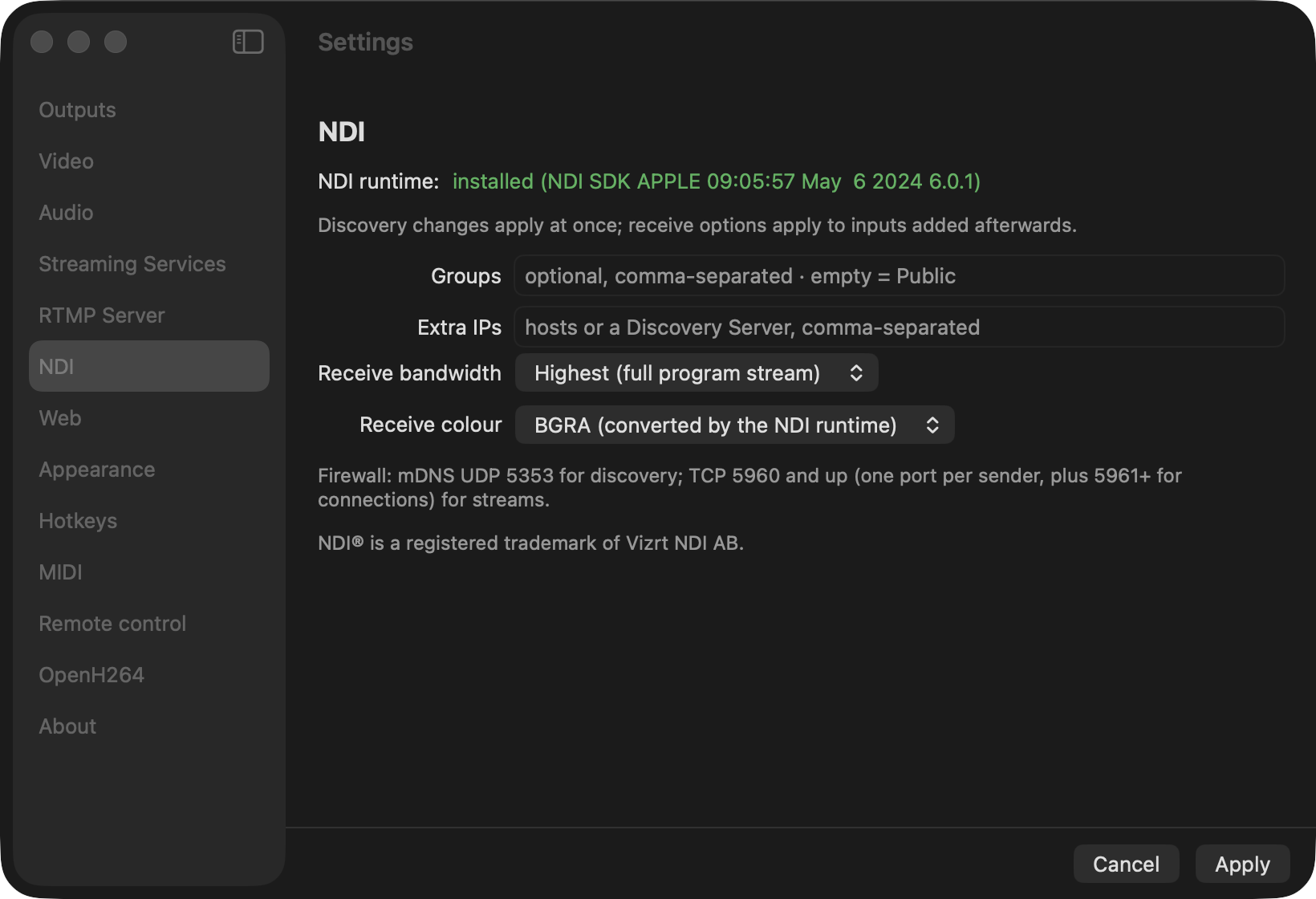
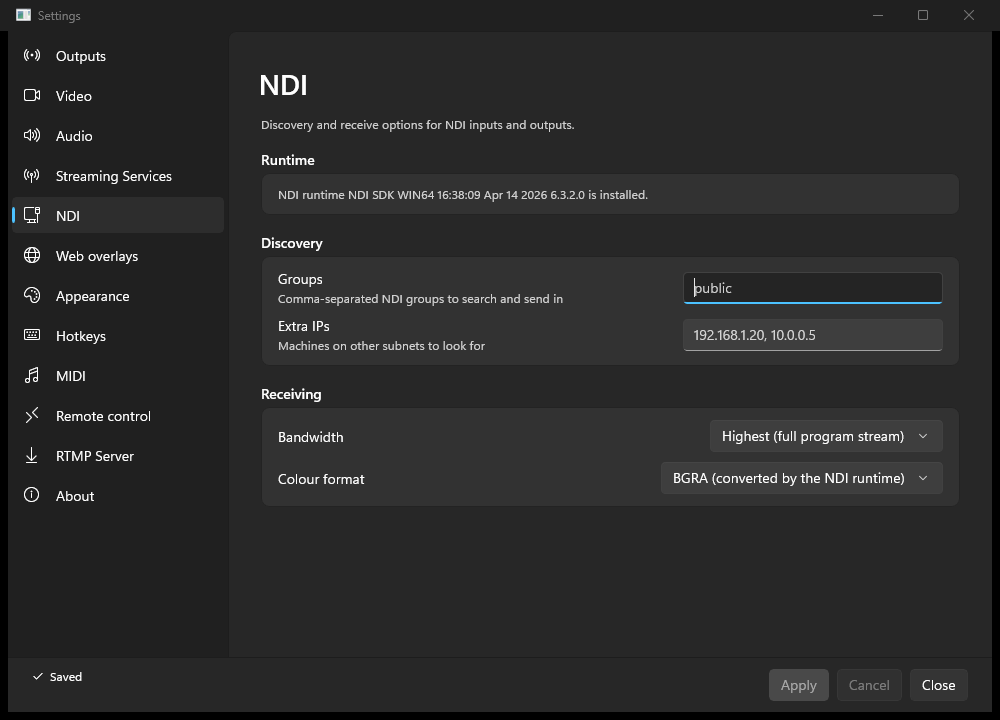
v4l2loopbackdevice, which browsers and call apps list as a camera (see below). - NDI output — publishes over NDI, which works across platforms and over the local network. NDI-aware apps and the free NDI Tools see a source with the name you give it. NDI carries audio as well as video, so the mixed program audio travels with the picture.
A sender takes the program canvas as it is — it has no canvas preset and no encoder settings (there is no encoder; the compositor feeds the protocol directly), so its editor shows only:
- Name — the name other apps see (default
stream-concern). - Groups — NDI only, optional and comma-separated; leave empty for the default group.
The sender row shows a SYPHON, SPOUT, PIPEWIRE, VCAM or NDI protocol tag, the state badge, and once live the number of connected clients (the protocol’s tally) and the count of frames published. Start, Stop, Duplicate and Remove work as for any output, and senders take part in Start all / Stop all.
For a PipeWire output the row instead reports the active data path — one
of DMA-BUF with the negotiated modifier (for example DMA-BUF 0x0300000000606014, the zero-copy path), SHM BGRx / SHM BGRA (the
shared-memory fallback), or waiting for a consumer before anything has
connected — followed by the published, dropped and sync-timeout
counters. If a canvas resize could not rebuild the sender it reads sender
stopped in red.
macOS
Windows
Linux
macOS
Windows
Linux
When a sender can’t start
-
Syphon uses the
Syphon.frameworkbundled with the app (Metal, Apple silicon and Intel). In a development build without it the row reads Failed and the editor shows the reason: build it withscripts/syphon/fetch.sh, pointSC_SYPHON_FRAMEWORKat a Metal-capable framework, or have/Applications/OBS.appinstalled (the copy inside it is used as a fallback). -
Spout needs Windows and a Direct3D 12 GPU; the app runs its renderer on Direct3D 12 on Windows for this, falling back to OpenGL only on a machine with no Direct3D 12 adapter (unless
WGPU_BACKENDnames another backend). On any other backend the row reads Failed with “Spout output needs the Direct3D 12 backend; the app is running on <backend>”. If the shared texture cannot be created the row likewise reads Failed with the reason, rather than running without publishing frames. If another app (or another sender) already uses the name, the sender starts under the name with_1(then_2, …) appended, as Spout itself does; other apps list it under that name. On macOS and Linux a Spout sender reports “not available in this build”. -
PipeWire needs a running PipeWire session (the usual desktop default). Without one, starting the source reports a clean missing-daemon error.
-
Virtual camera on macOS needs its camera extension installed once: the editor shows Install virtual camera… (also under the stream-concern menu) while the camera is absent. Choose it, then approve the extension under System Settings › General › Login Items & Extensions › Camera Extensions and start the output again; the editor then reads Camera extension active. Until then a start reports Failed with these same steps. Other apps keep seeing the camera when the output is stopped (they get a grey placeholder), and the picture follows the canvas size.
-
Virtual camera on Linux writes into a
v4l2loopbackdevice, a kernel module the app does not install or load itself. The Virtual camera row at the end of the Outputs column’s Senders group (and the output’s editor) says which of three cases applies, rechecked every few seconds:- a loopback device exists: Publishes to /dev/videoN (stream-concern).
The camera uses the device labelled
stream-concern, or else the lowest-numbered loopback device (the row then says how to give it the app’s name); - the module is installed for the running kernel but not loaded: the row
gives the command
sudo modprobe v4l2loopback exclusive_caps=1 card_label=stream-concern. To load it at every boot, put the linev4l2loopbackin/etc/modules-load.d/v4l2loopback.confand the lineoptions v4l2loopback exclusive_caps=1 card_label=stream-concernin/etc/modprobe.d/v4l2loopback.conf; - the module is not installed: install it (Debian and Ubuntu:
sudo apt install v4l2loopback-dkms), then load it as above.
A start without a device reports Failed with the same text; once the module is loaded the output starts again on its own. If the device goes away while the output runs, the output stops writing and the row shows the load text again. The app’s own
stream-concernloopback camera is left out of Add input ▸ Webcams, so a scene cannot feed the camera its own picture; another loopback camera (another app’s) is still listed. - a loopback device exists: Publishes to /dev/videoN (stream-concern).
The camera uses the device labelled
-
Virtual camera on Windows needs Windows 11 and a one-time install. The setup program (
...-setup.msi) does it for you, and the editor then reads The virtual camera was installed by the setup program. With the portable ZIP, run once from an administrator PowerShell in the stream-concern folder:powershell -ExecutionPolicy Bypass -File .\scripts\vcam\build-windows.ps1 -Register(it copiessc_mf_vcam.dllunder Program Files and registers it; Windows’ camera service only loads it from there). After that, starting the output needs no administrator: stream-concern Virtual Camera appears in the Camera app, browsers, Zoom, Teams and Discord while the output runs, and disappears when it stops. Consumers can pick NV12, YUY2 or RGB32 at 1920x1080 or 1280x720 (30 fps); the programme is scaled to the size they choose. If stream-concern stops publishing while an app still shows the camera, it gets a grey placeholder. Until the install is done a start reports Failed with the install command; on Windows 10 it reports that Windows 11 is required. -
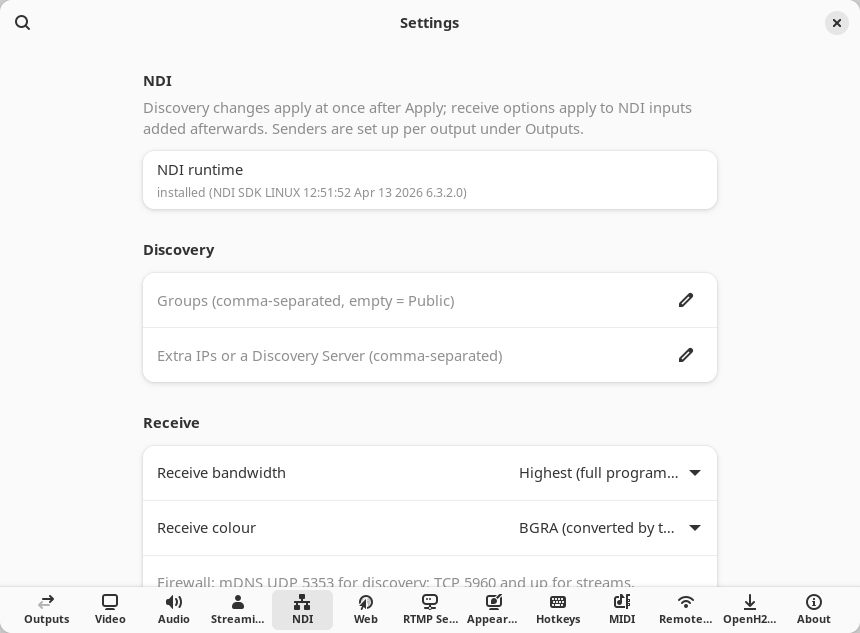
NDI requires the NDI runtime, which is not bundled. When it is not installed the row reads Failed and the editor shows how to install it, with the notice NDI® is a registered trademark of Vizrt NDI AB. Install the runtime from ndi.video and restart.
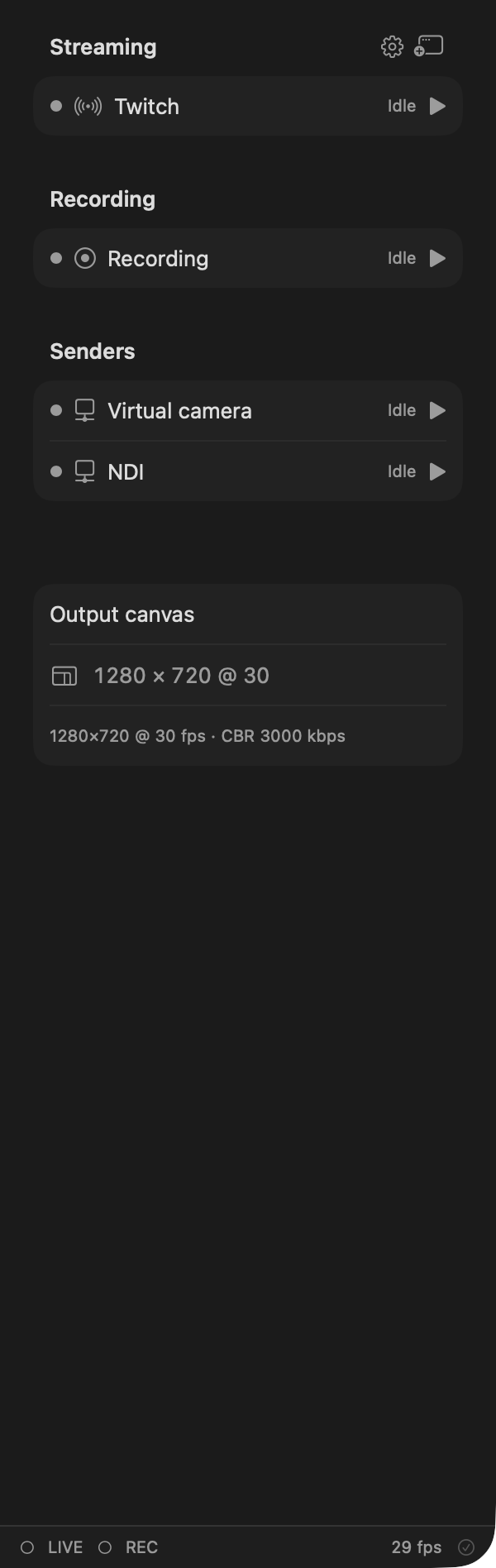
The status bar readouts
The status bar at the bottom shows a LIVE dot while streaming and a REC
dot while recording, the app’s status or last error, and at the right a
one-line summary: the composed frame rate, how many outputs run and, once any
were dropped, the dropped frames (30 fps · 1 live · 4 dropped). The summary
turns red while any running output has a bad figure (the rules above). Hover
it for the primary stream’s state line, the engine’s status and the full
statistics line, which includes:
- the current canvas size, source fps, frame sequence and timestamp, produced and dropped frame counts, the active encoder, and the microphone label;
- one entry per running output: its kind tag (STREAM, TEST or REC),
its name, its state (
starting,live,reconnecting,failed) and, for a stream, its throughput in kbps; - for the primary stream: the target bitrate (
tgt), congestion percentage (cong) and reconnect count (rc), plus the per-track ladder when Enhanced Broadcasting is active; - for the primary recording: the encoded-frame count, the file size in MB, and the split part number when the recording is split.
Whether a Twitch stream is a bandwidth test is shown two ways: the TEST badge on the output row, and the stream’s status (its hover card and the summary’s) reading TEST MODE instead of LIVE.
For what the streaming state and failure messages mean, see
../troubleshooting.md.