Documentation

stream-concern is a live streaming and recording app for macOS, Windows and Linux. The three apps share one engine and work the same way, so this guide describes them once; where an app differs, the text says so. Every picture has a macOS, Windows and Linux version: pick yours above any screenshot and the guide remembers it.

The user guide

User guideWhat the guide covers, and its pages.Getting startedinstall, first launch, the macOS permissions the app needs, and where your profile, scenes and logs live.Settingsdraft edits, Apply/Cancel, base canvas, audio devices, output defaults, conflicts, and save errors.Sourcesevery entry in the Add source pull-down (displays, windows, webcams, capture cards, media files, images, text overlays, RTMP Server, Syphon/NDI interchange, the test pattern), what each OS supports, and each source's properties.Web overlaysbrowser layers (chat, alerts, widgets): when they run at full rate, the background rate, Reload, crash and reconnect recovery, and the memory ceiling.Alert simulatortest follows, subscriptions, donations and raids in a web overlay's alert box without going live.News crawla news-channel ticker layer: scrolling lanes, a badge, headline or clock over them, and items from a text file you edit while live.Make your own crawl templatedesign a crawl from an empty band in the Crawl designer: lanes, pinned badges and clocks, shapes and gradients, dragging on the preview, and sharing templates as files.Scenes and the canvas editorthe scene list, scene transitions, the layer stack, and placing and sizing layers by direct manipulation.Undo and redowhich scene and layer edits can be undone, and which cannot.Audio and the mixermixer strips, the dB fader, meters, filters, desktop and application audio, multi-channel devices, monitoring, and the microphone input.Silence on this Mac (capture only)keep a game's or the system's audio off your speakers while the stream and recordings still carry it (macOS 14.2+).Windows and layoutthe docked panels, detaching the mixer into its own window, mixer scrolling, which tool windows open outside the main window, and where their size and position are remembered.Outputs: streaming and recordingthe Outputs panel, adding destinations and recordings, canvas presets, rate control, Twitch test mode, sharing an encoder, and running several outputs at once.Dynamic bitrate and reconnectinghow a stream follows a slow upload and comes back after a dropped connection.Control surfaces: MIDI and keyboard shortcutsthe actions a controller can run, the default keyboard shortcuts, and setting up a MIDI controller with Learn.Remote control: Stream Deck, Companion and OBS-compatible websocket controllersthe OBS-compatible websocket server (obs-websocket 5), which Stream Deck plugins to use, the password, and what a controller can do.Recordingcontainers, encoders, ProRes, quality presets, filename templates, split policy, where files land, and A/V sync.Versions and licencesthe alpha, beta and release channels, when an alpha or beta stops, what a licence and its year of updates allow, and entering a licence.

The main window

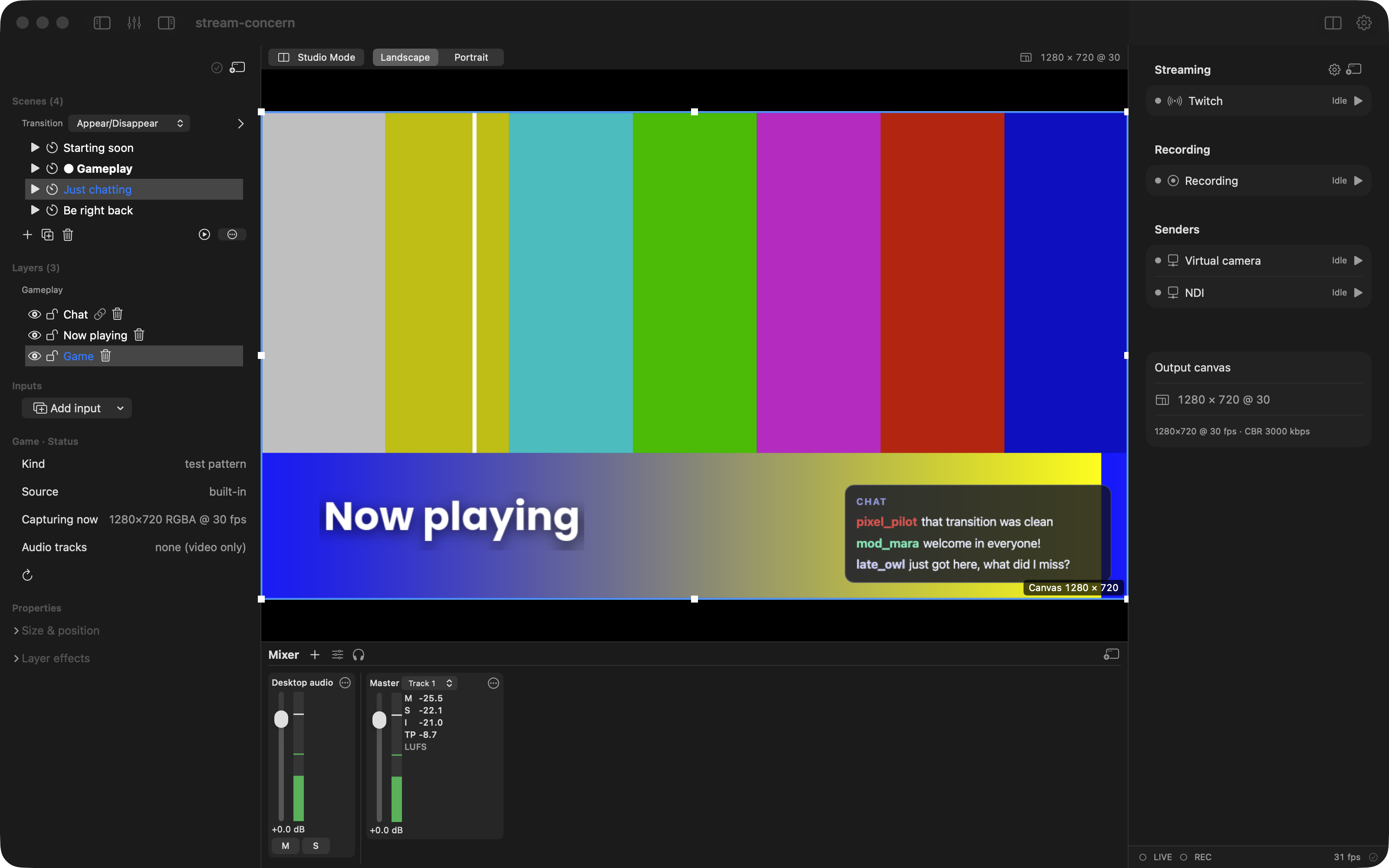
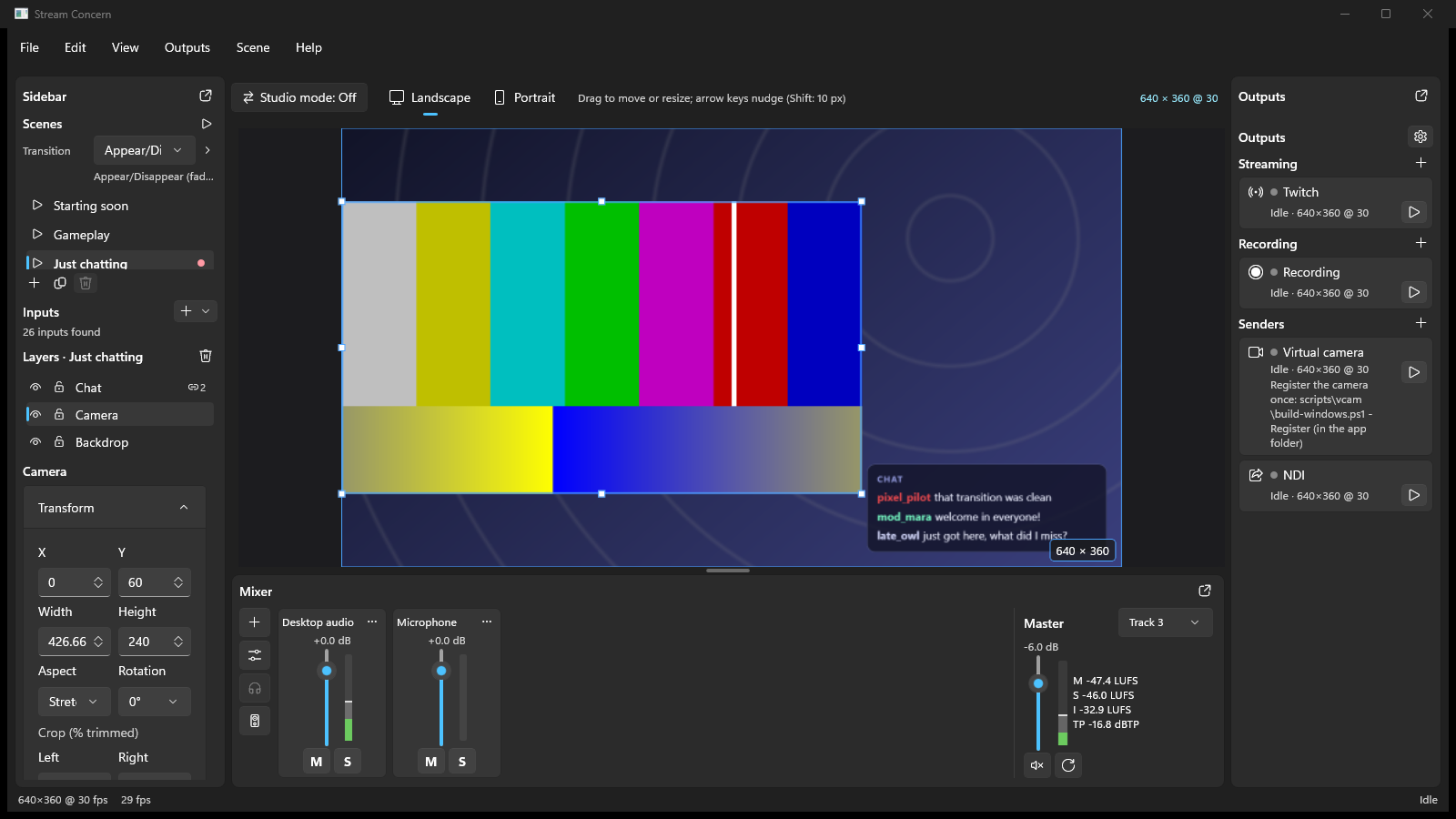
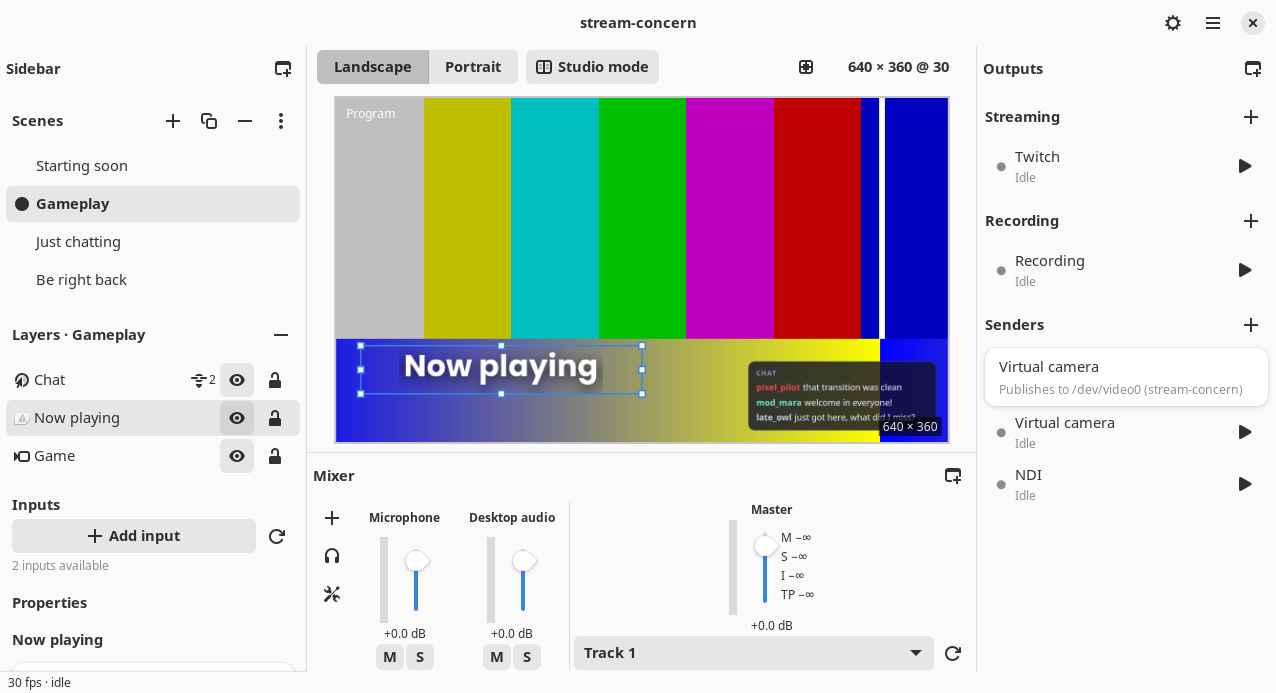
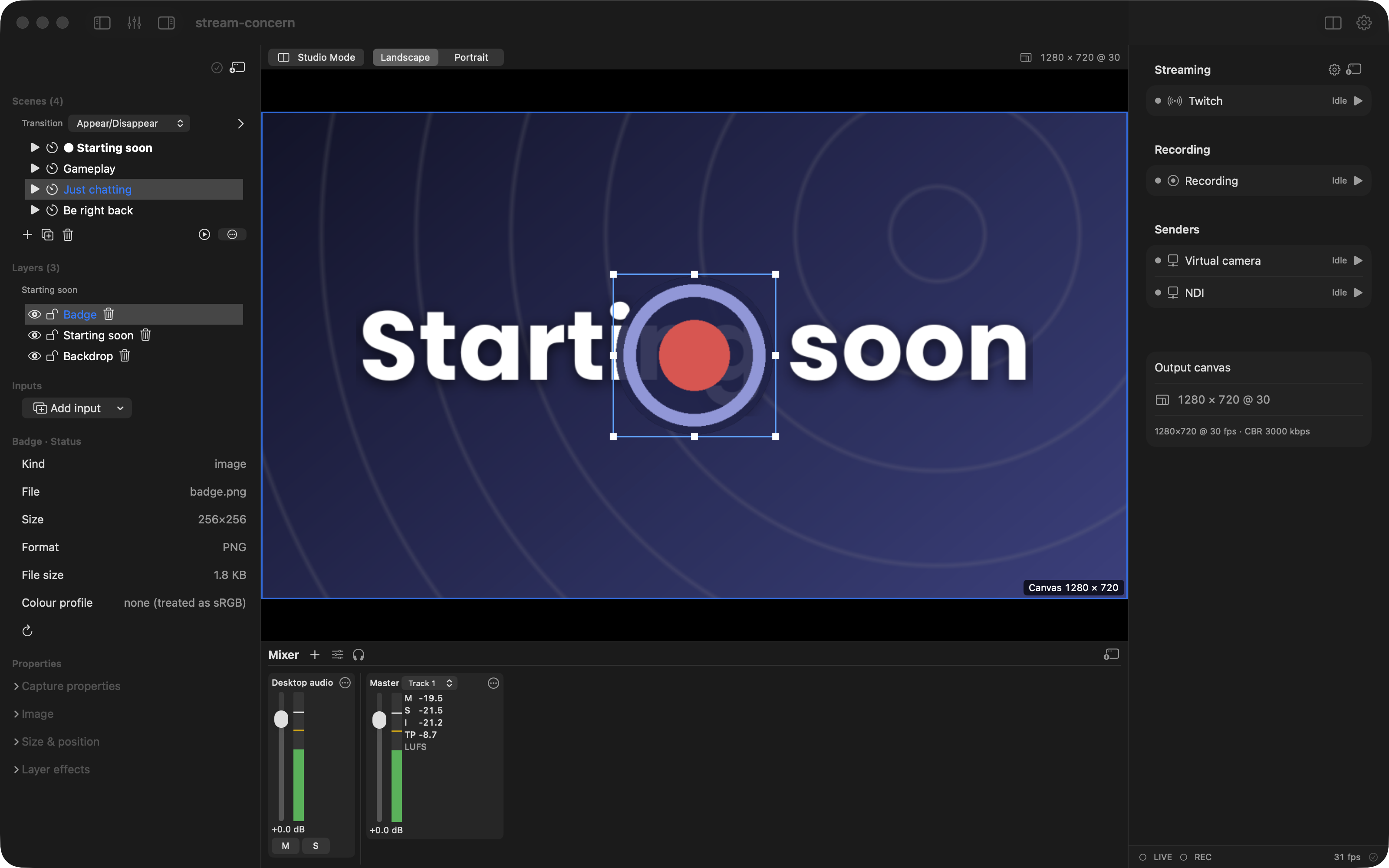
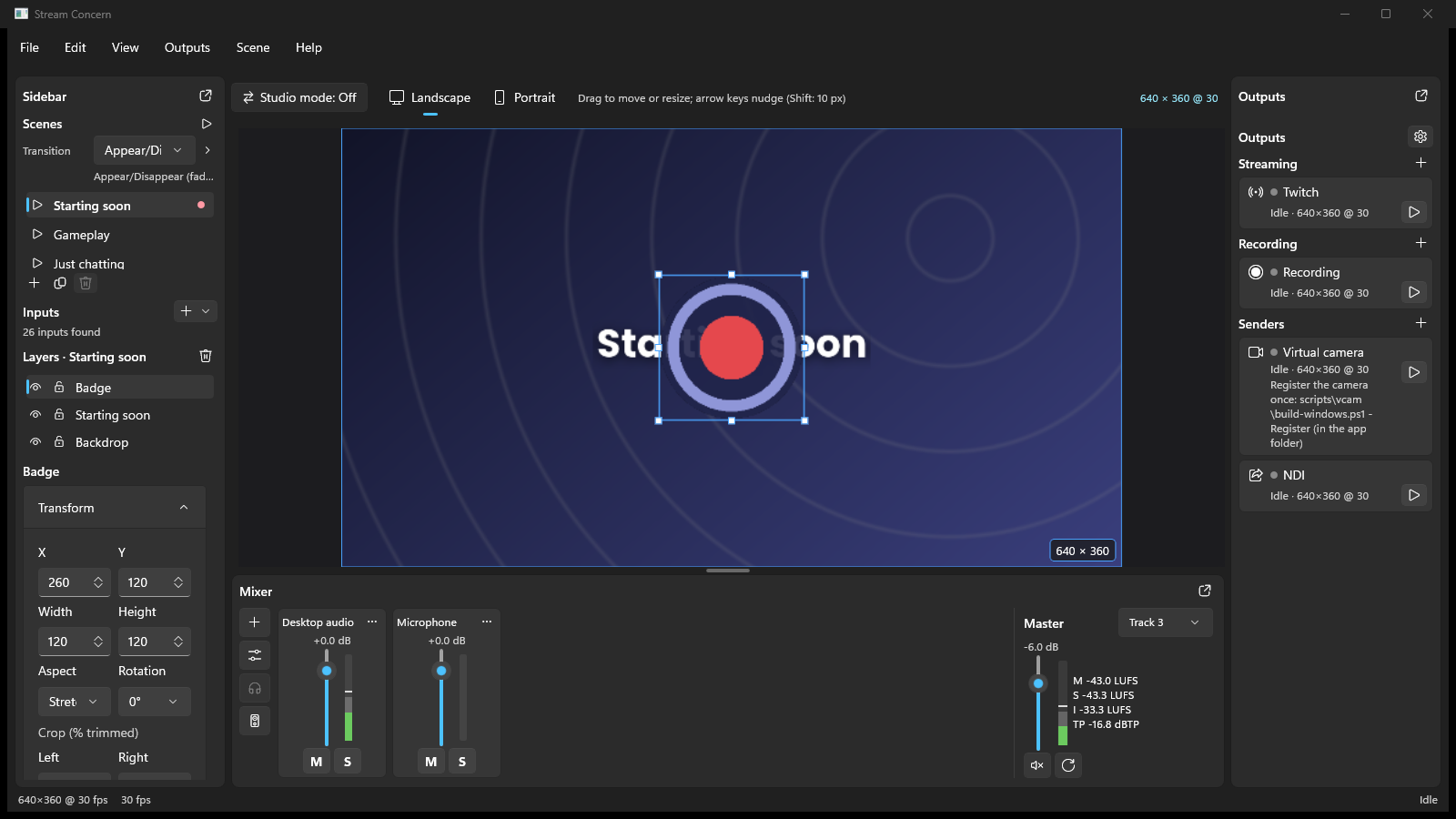
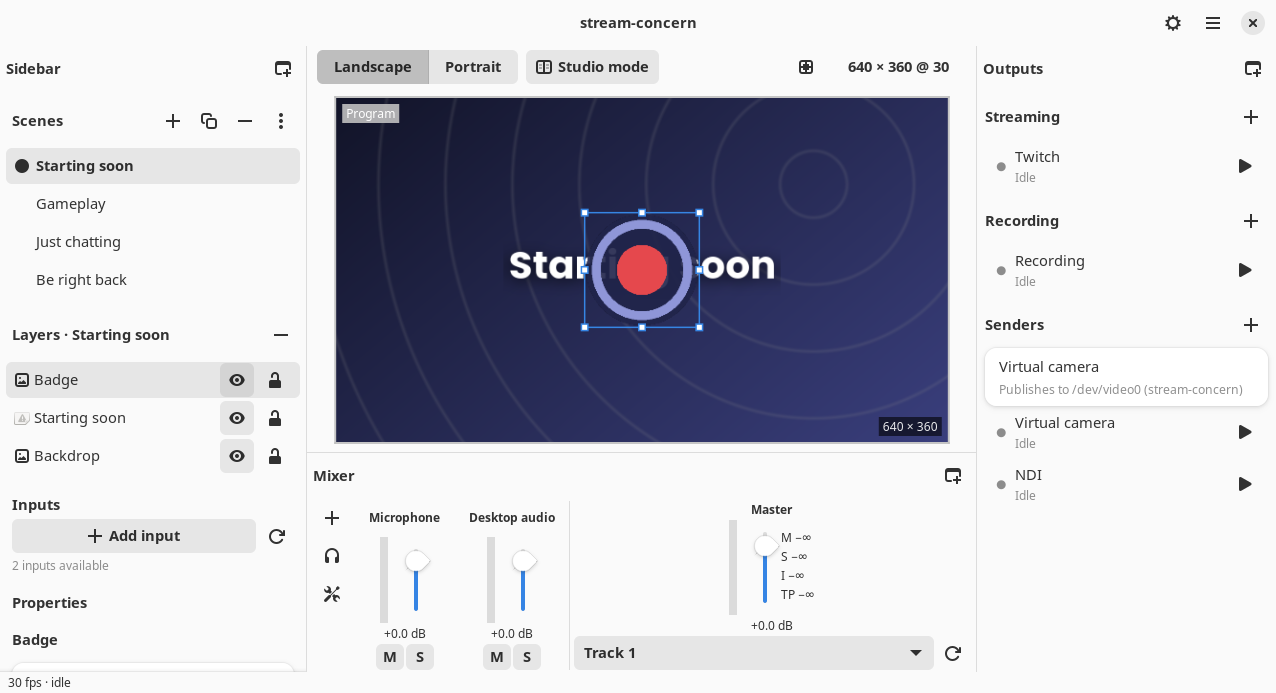
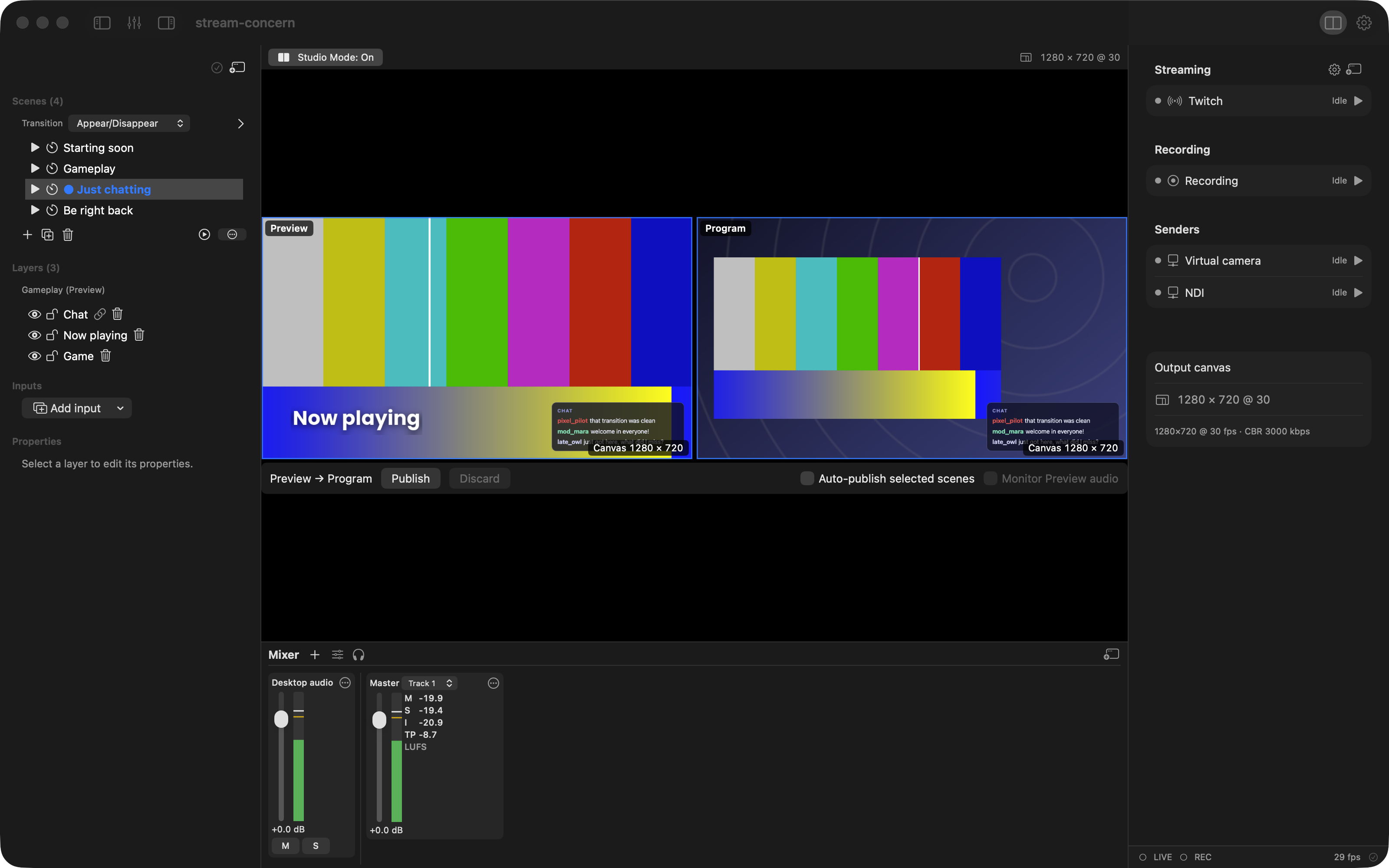
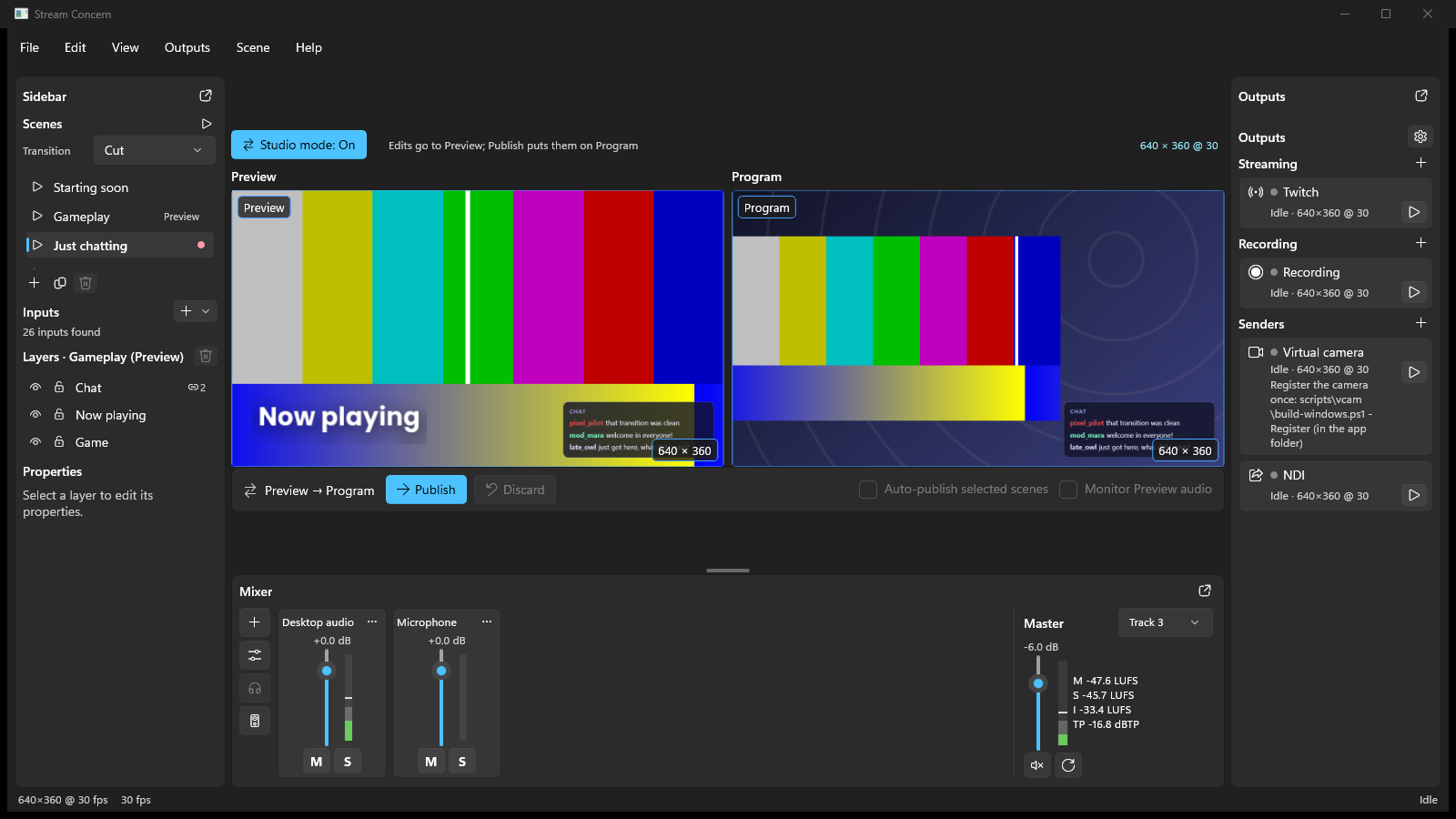
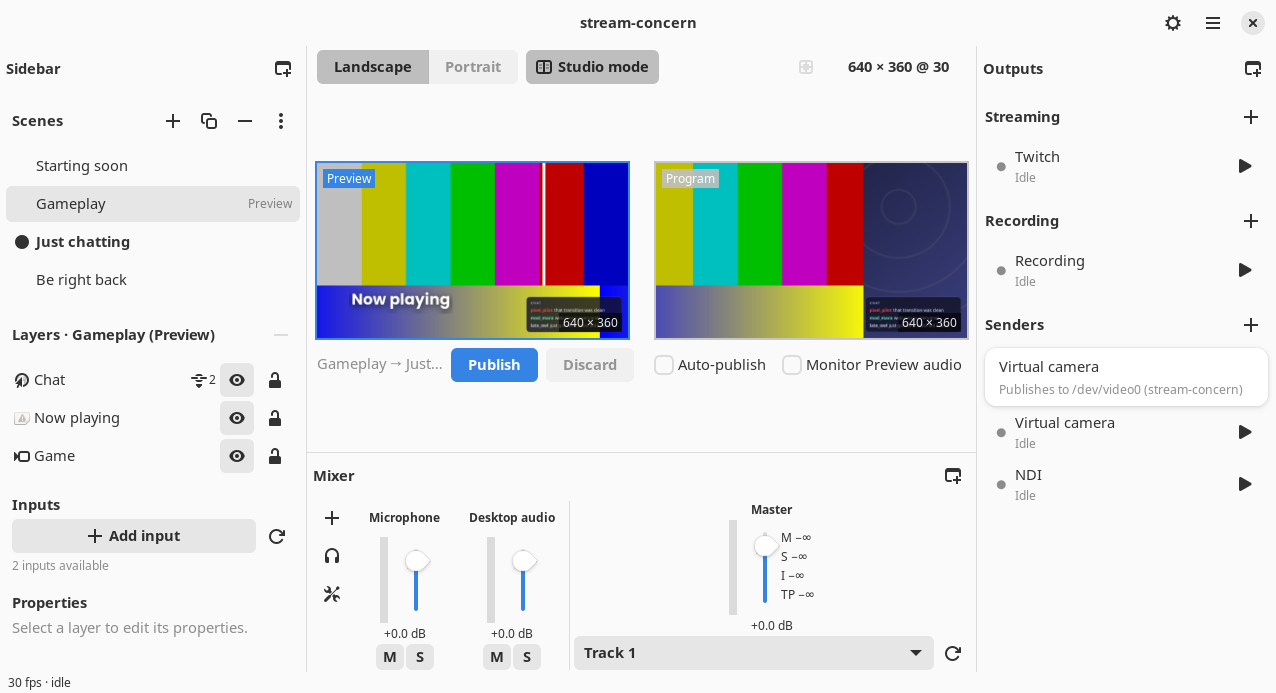
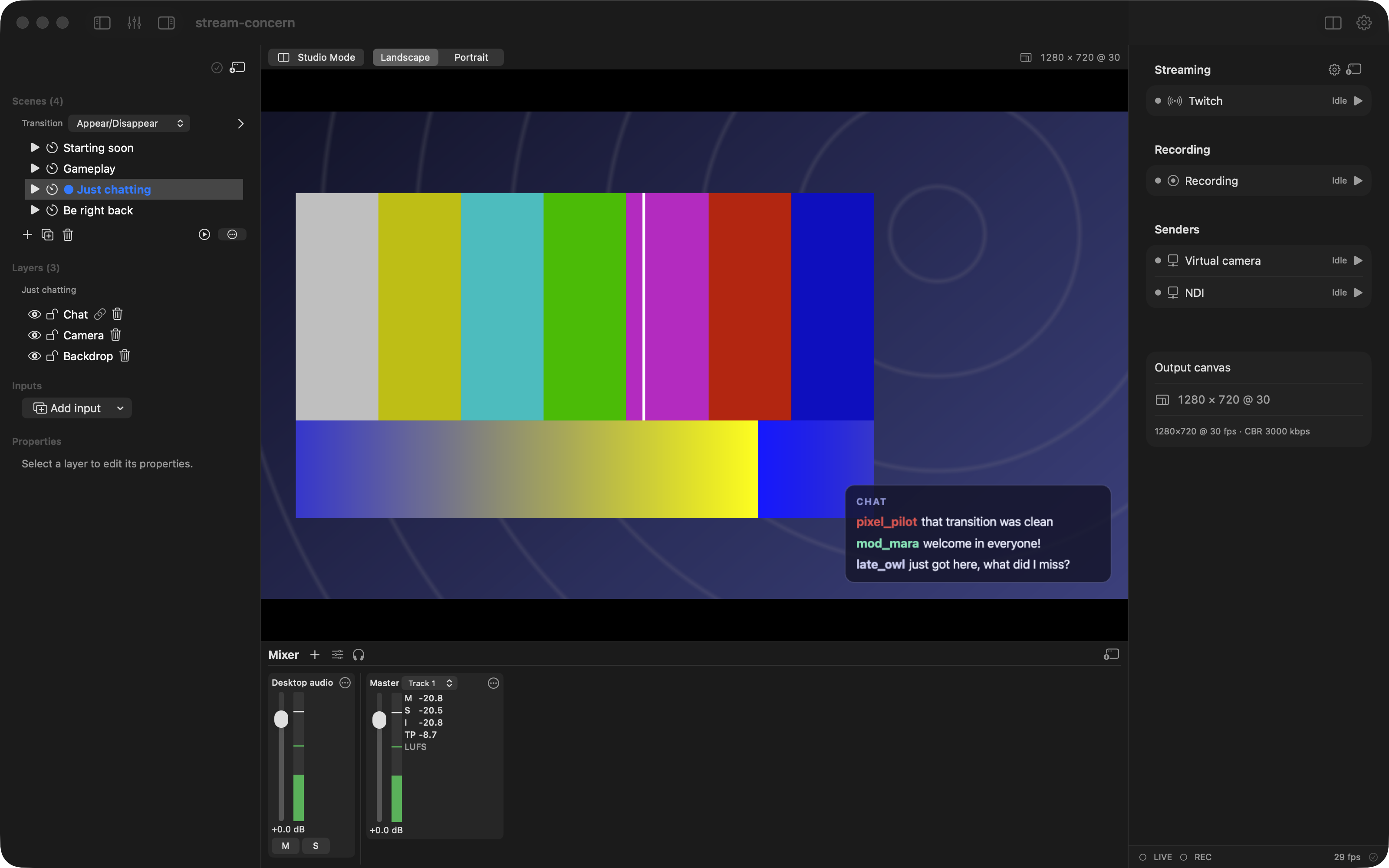
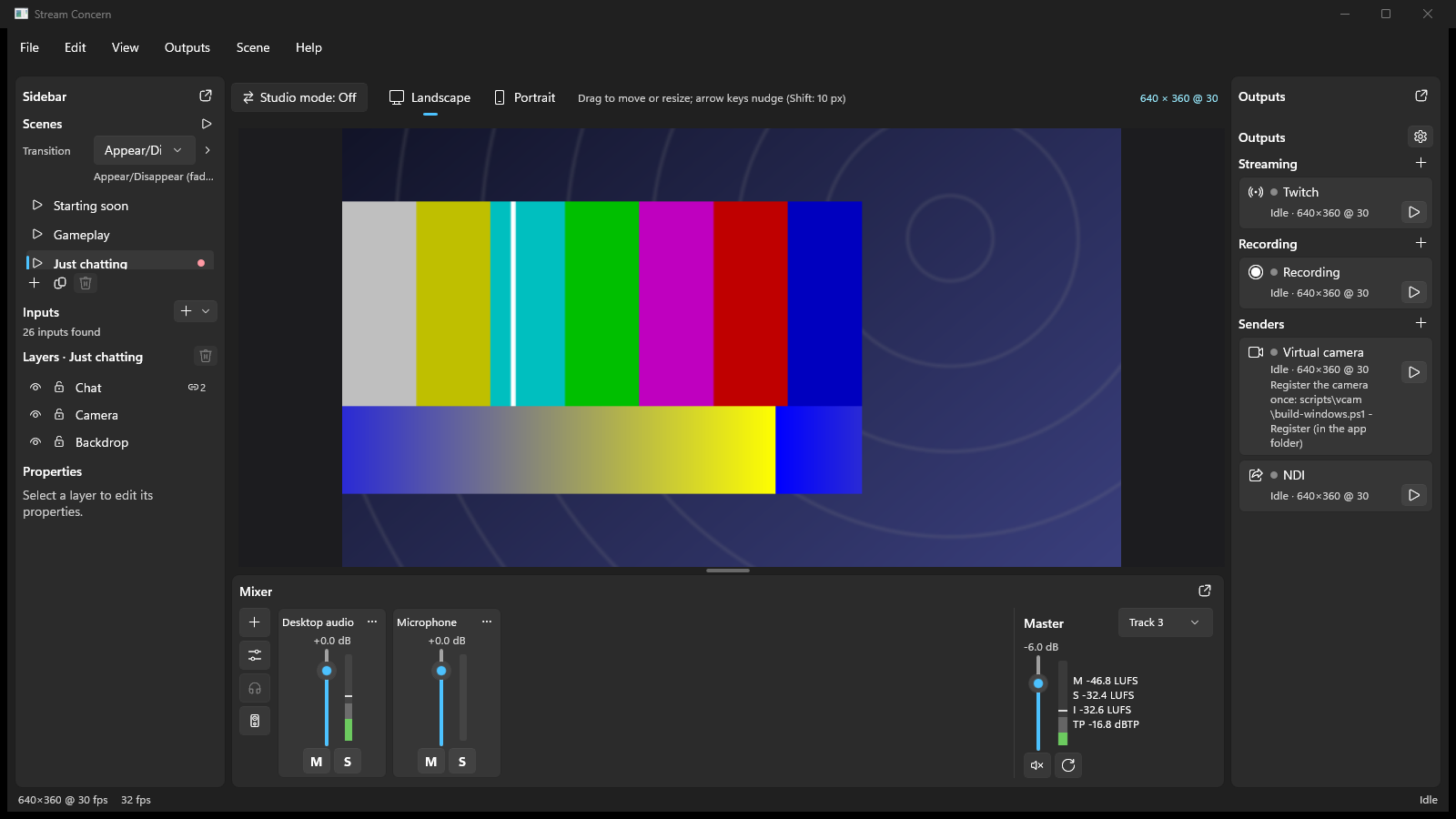
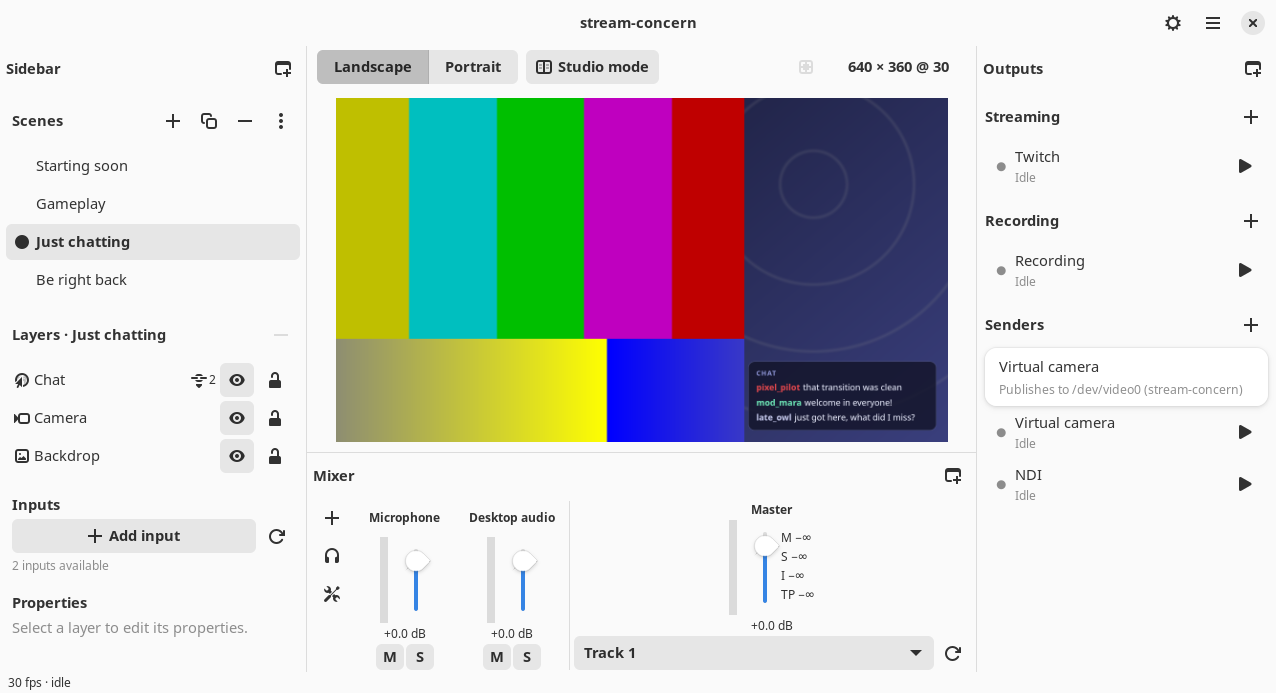
The main window has three columns. On the left the Sidebar holds the Scenes of your collection, the Layers of the scene you are working on, the Inputs you can add and the Properties of the selected layer. In the middle is the canvas, the picture your audience gets, with the Mixer under it. On the right the Outputs column lists your streams, recordings and senders. The Sidebar, the Mixer and the Outputs can each be hidden or moved into a window of their own from the View menu.

macOS

The main window with a scene collection loaded: scenes and layers on the left, the canvas in the middle, the mixer below it and the outputs on the right (macOS)

Windows

The main window with a scene collection loaded: scenes and layers on the left, the canvas in the middle, the mixer below it and the outputs on the right (Windows)

Linux

The main window with a scene collection loaded: scenes and layers on the left, the canvas in the middle, the mixer below it and the outputs on the right (Linux)
The main window with a scene collection loaded: scenes and layers on the left, the canvas in the middle, the mixer below it and the outputs on the right

Scenes

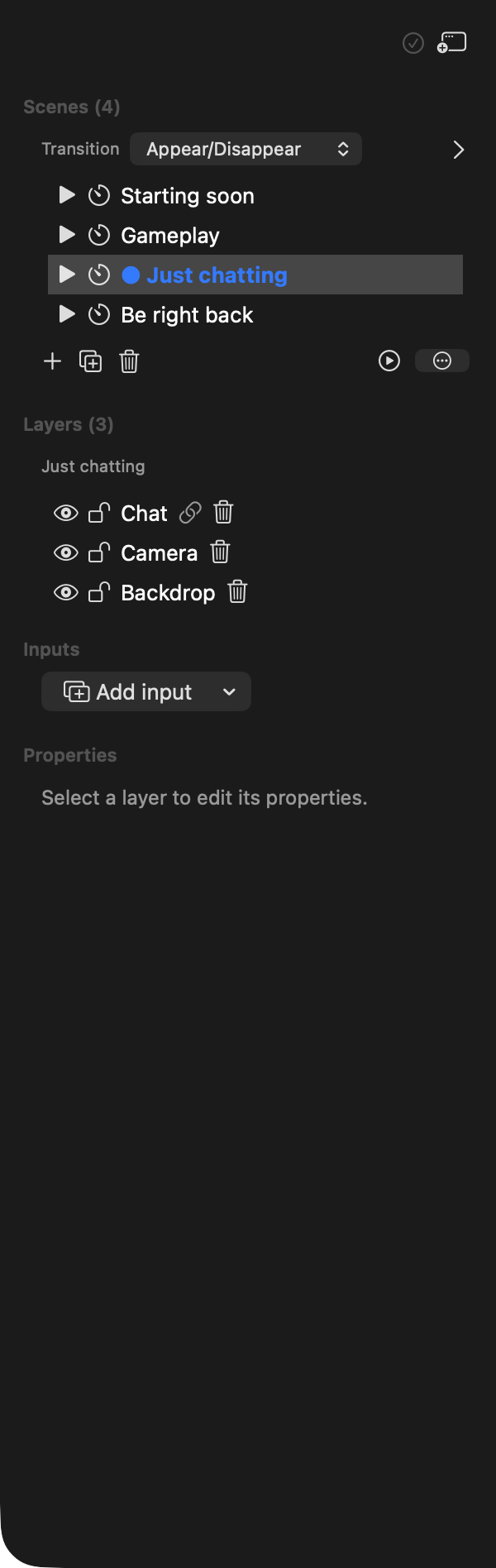
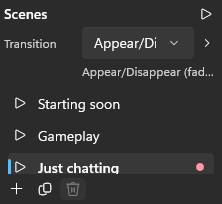
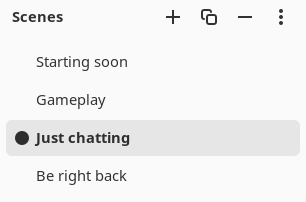
A scene is one arrangement of your inputs: a camera over a game, a title card, a full-screen chat. A collection holds as many scenes as you like, and the one on Program is the one your outputs send. Switching scenes can cut at once or play a transition: a crossfade, a fade through black, a slide, push, wipe or zoom, or Appear/Disappear, which moves only the layers that differ. More about scenes.

macOS

The scene list with four named scenes, the one on Program marked (macOS)

Windows

The scene list with four named scenes, the one on Program marked (Windows)

Linux

The scene list with four named scenes, the one on Program marked (Linux)
The scene list with four named scenes, the one on Program marked

Scene automation

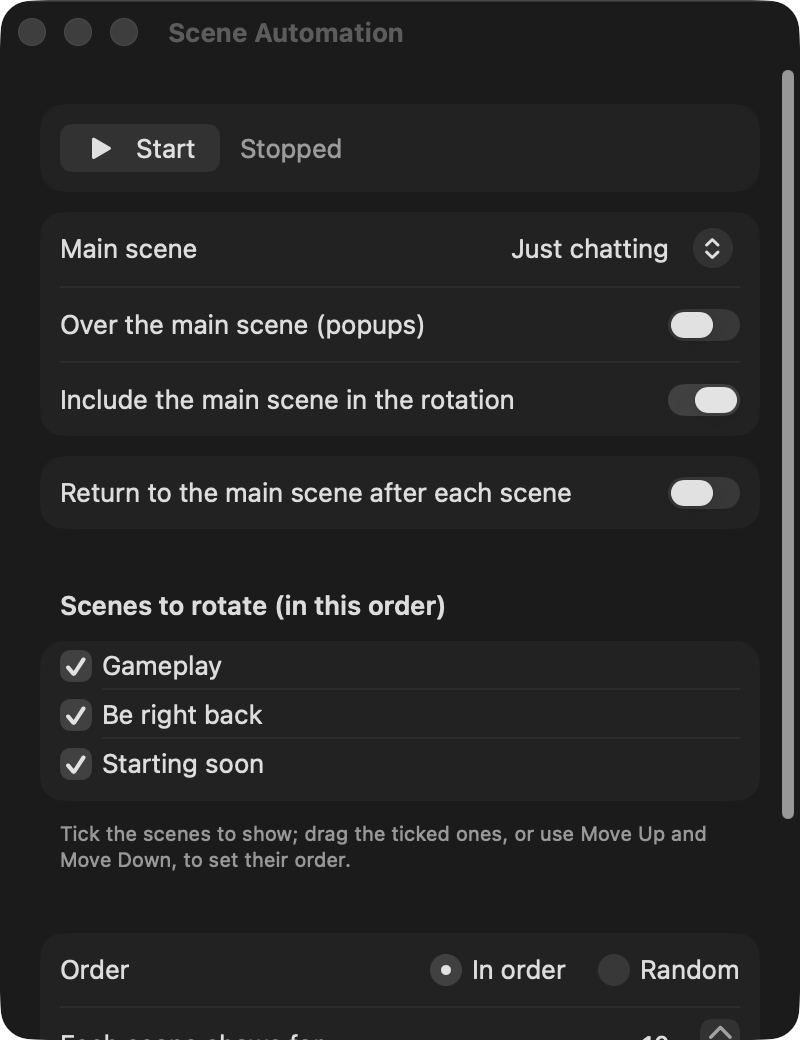
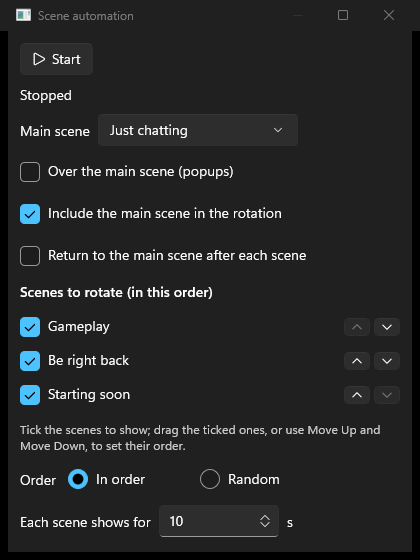
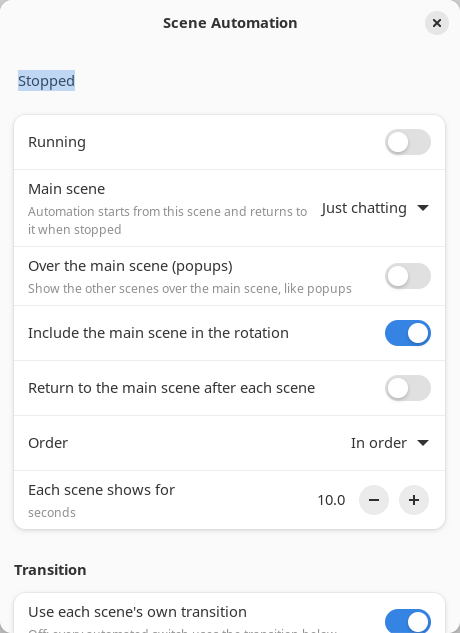
Scene automation switches Program on a timer: through your scenes in the order you choose, or at random, with or without a main scene to come back to in between. It can also keep the main scene on screen and bring the other scenes up over it, like popups. It starts each scene's cameras and media a moment early, so a switch never shows a camera warming up. More about scene automation.

macOS

The Scene Automation window with a main scene, three scenes ticked in order and a ten-second dwell (macOS)

Windows

The Scene Automation window with a main scene, three scenes ticked in order and a ten-second dwell (Windows)

Linux

The Scene Automation window with a main scene, three scenes ticked in order and a ten-second dwell (Linux)
The Scene Automation window with a main scene, three scenes ticked in order and a ten-second dwell

Layers

Everything you add to a scene is a layer: a display or window capture, a camera or capture card, a media file, an image, text, a web overlay, a stream another encoder sends to the app's own RTMP Server, or a picture another app shares over NDI, Syphon, Spout or PipeWire. You place and size layers by dragging them on the canvas, and set the rest (crop, rotation, opacity, fades) in the layer's properties. One layer can be shown in several scenes at once.More about layers.

macOS

A scene's layer list with one layer selected, its properties in the inspector and its outline on the canvas (macOS)

Windows

A scene's layer list with one layer selected, its properties in the inspector and its outline on the canvas (Windows)

Linux

A scene's layer list with one layer selected, its properties in the inspector and its outline on the canvas (Linux)
A scene's layer list with one layer selected, its properties in the inspector and its outline on the canvas

Ordering layers

Layers are drawn in the order of the Layers list: the layer at the top of the list is in front of the others. Drag a layer up or down the list, or move the selected layer with the keyboard, to change what covers what.More about ordering layers.

macOS

After: the image layer has moved above the text layer in the list and now covers it on the canvas (macOS)

Windows

After: the image layer has moved above the text layer in the list and now covers it on the canvas (Windows)

Linux

After: the image layer has moved above the text layer in the list and now covers it on the canvas (Linux)
After: the image layer has moved above the text layer in the list and now covers it on the canvas

Publishing and Studio mode

Outside Studio mode your edits go straight to the picture your audience sees. Studio mode splits the canvas intoPreview and Program: you prepare a scene in Preview, change it as much as you like, and Publish it to Program when it is ready, with its transition. Auto-publish sends each scene you pick straight to Program instead. More about Studio mode.

macOS

Studio mode: Preview on the left with an edited scene, Program on the right, and Publish under them (macOS)

Windows

Studio mode: Preview on the left with an edited scene, Program on the right, and Publish under them (Windows)

Linux

Studio mode: Preview on the left with an edited scene, Program on the right, and Publish under them (Linux)
Studio mode: Preview on the left with an edited scene, Program on the right, and Publish under them

Outputs

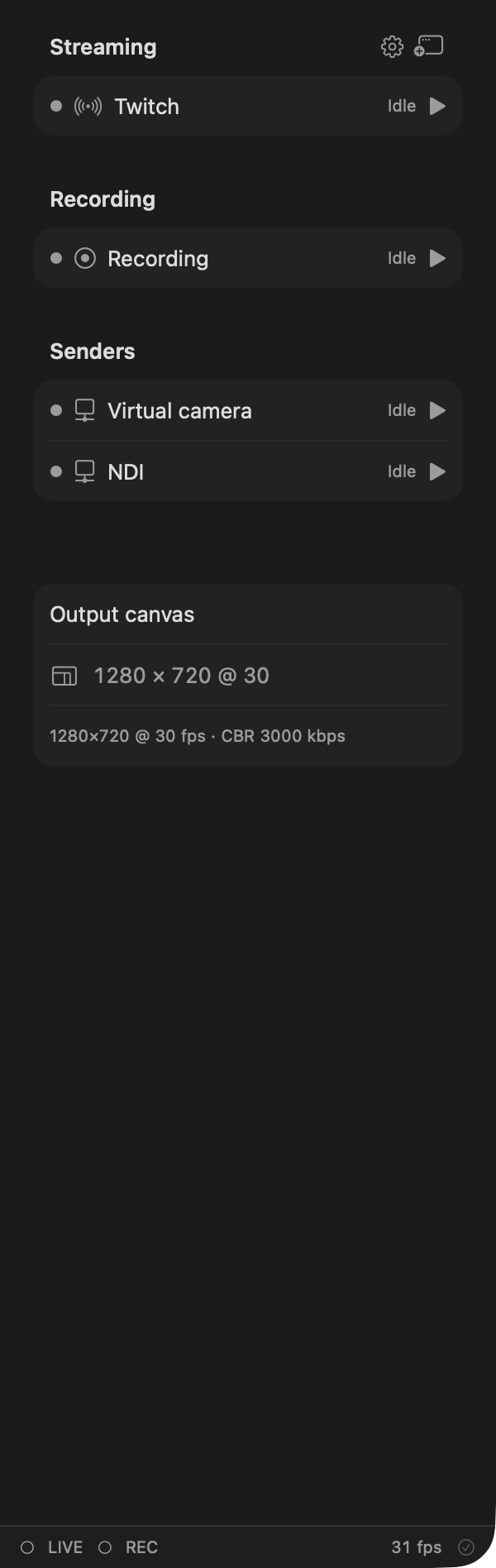
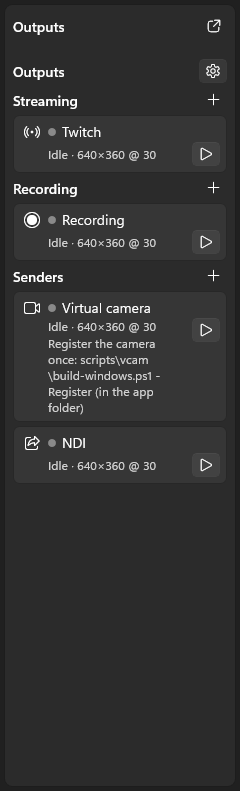
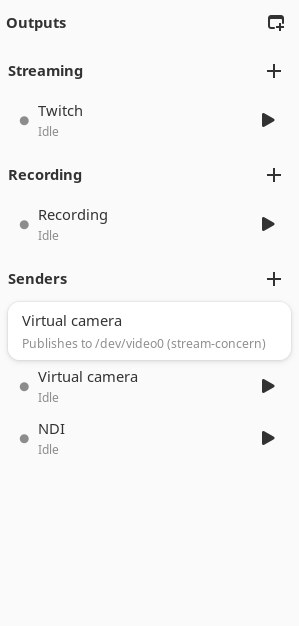
An output is one destination: a live stream to Twitch, YouTube or any of the other services the app knows, a recording on disk, or a sender that hands the picture to other apps (the virtual camera, NDI, and Syphon, Spout or PipeWire depending on your platform). Any number of outputs can run at once, each with its own settings. The app can also receive: its RTMP Server lets another encoder stream into it. NDI, for sending and receiving video over your network, needs Vizrt's free NDI runtime, a separate download: how to set it up.More about outputs.

macOS

The Outputs column with a stream, a recording and a sender in their groups (macOS)
Windows

The Outputs column with a stream, a recording and a sender in their groups (Windows)
Linux

The Outputs column with a stream, a recording and a sender in their groups (Linux)
The Outputs column with a stream, a recording and a sender in their groups